
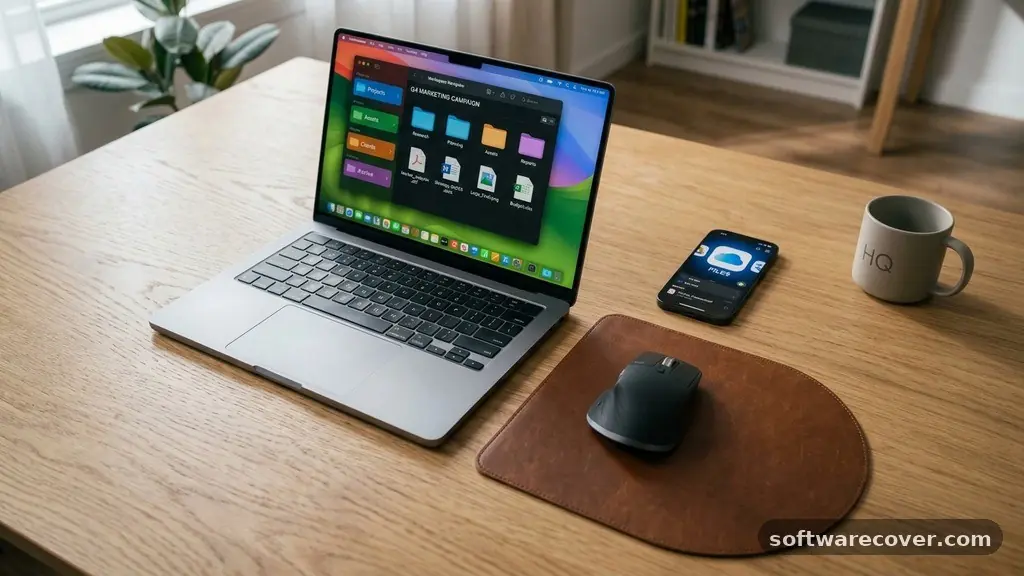
Finding the best Free Software for Organizing Digital Files can transform a chaotic hard drive into a streamlined workspace. When your folders are cluttered with mislabeled documents, the time spent hunting for specific records adds up to hours of lost productivity each week. By implementing automated systems, you regain control over your digital assets and ensure that every file lands exactly where it belongs.
This overview explores the most effective tools available for managing your documents, photos, and media without requiring a paid subscription. You will learn how to leverage automation to handle repetitive tasks, allowing you to focus on your actual work instead of manual data housekeeping.
Identifying Top-Tier Free Tools
The market for organization software is vast, but only a few programs offer the right balance of power and accessibility. Many users find that manual sorting is simply unsustainable when dealing with hundreds of incoming documents. To address this, developers have created platforms that allow you to set specific criteria for how your data is handled.
These tools function by monitoring designated folders and applying logic based on your personal preferences. The most reliable options currently available include DropIt, File Juggler, and various built-in operating system features that are often overlooked.
When selecting a tool, you should prioritize those that allow for “if-then” logic. For example, you can command the software to move any invoice received in PDF format to a specific “Finance” folder. This level of automation ensures that your digital desktop remains clean without constant intervention.
While some of these programs offer premium tiers, the free versions are usually sufficient for personal and small-office needs. You should assess your specific pain points—whether it is thousands of messy photos or a flood of tax documents—before committing to a long-term software solution.
Harnessing the Power of DropIt
DropIt stands out as a highly flexible and lightweight solution for anyone looking to automate their file management. It operates by allowing you to define a set of rules that trigger specific actions based on file names, extensions, or sizes. You simply drag and drop your files onto the floating icon, and the program instantly sorts them into your pre-configured destination folders.
This method is incredibly fast and removes the friction of moving items one by one. It is particularly useful for clearing out a cluttered “Downloads” folder, which often becomes a graveyard for temporary files.
The configuration process is straightforward for those who prefer a visual interface. You create “associations” that link a file type to an action, such as “Move,” “Copy,” “Rename,” or “Extract.” By defining these patterns, you can effectively teach the software how to handle your unique workflow.
Many users appreciate the ability to create different profiles for different tasks, such as one profile for organizing personal media and another for professional work documents. Because it is portable, you can even keep it on a USB drive to maintain your organizational standards across multiple computers.
Leveraging File Juggler for Automation
If you need more advanced capabilities, File Juggler is a compelling choice that focuses on deep content analysis. Unlike simpler tools that only look at file extensions, this application can scan the contents of a file to determine its destination. This is especially helpful for invoices, contracts, or receipts that share similar names but contain different data.
By reading the text inside a document, the program can intelligently rename files and place them in the correct subfolders automatically. This level of sophistication is rare in free-tier software and provides a significant boost to your efficiency.
The setup involves defining “rules” that look for specific keywords or patterns. For instance, if a document contains the word “Electricity” and a specific account number, the software will know exactly where to save it. This eliminates the need for manual renaming, which is often the most tedious part of digital filing.
You can create complex chains of logic that handle almost any document type with high precision. While the interface might look technical at first, the time saved by having your documents automatically sorted is well worth the initial learning curve.
Comparing Popular Organization Software
Choosing the right tool requires understanding how different programs trade off between ease of use and advanced features. The following table highlights the core capabilities of the most popular free options, allowing you to match a program to your specific technical comfort level.
| Software Name | Primary Strength | Best For |
|---|---|---|
| DropIt | Speed and simplicity | Quick manual sorting |
| File Juggler | Content-based rules | Invoices and formal docs |
| PowerToys | OS integration | Windows power users |
| Hazel (Alternative) | Deep automation | Mac-based workflows |
Each of these tools serves a different purpose, and you might find that using a combination of two is the most effective strategy. For example, you might use one tool for general file cleanup and another specifically for managing your archive of sensitive financial documents.
Do not feel pressured to stick to just one program if your needs are diverse. The goal is to build a system that works for you, not to force your habits to fit a single rigid tool.
Building a Sustainable Filing System
The best Free Software for Organizing Digital Files is only as effective as the system you build within it. Before you start setting up rules, you must define a consistent folder structure that makes sense to your brain. Avoid overly complex hierarchies that require five clicks to reach a single file.
A flat, logical structure is usually much easier to maintain over time. You might categorize by year, then by project, or by document type. Consistency is the most important factor in ensuring that you can find what you need months or years later.
Once you have a structure, use your software to enforce it. If you decide that all receipts should go into a “2024 Receipts” folder, write a rule that automatically moves any file with the word “receipt” into that location. This prevents the “I’ll sort it later” mentality that leads to digital clutter.
You should also consider naming conventions that include dates in a sortable format, such as YYYY-MM-DD. This ensures that your files always appear in chronological order, regardless of when they were created or modified.
Essential Features to Look For
When evaluating your options, keep an eye out for specific features that provide long-term utility. A good organizer should support background monitoring, meaning it runs silently while you work. You do not want to manually trigger the software every time you download a file or save a document.
It should also include robust logging capabilities, so you can see exactly where a file was moved if you cannot find it later. Error handling is another critical component; the program should alert you if a file cannot be moved due to permission issues or duplicate names.
Consider whether the software allows for batch processing. If you have years of old files to organize, you need a tool that can handle thousands of items at once without crashing. Some programs are designed for ongoing maintenance, while others are better suited for “spring cleaning” your drives.
Ideally, you want software that can handle both tasks effectively. Check if the project is still actively maintained by the developers, as this ensures compatibility with future operating system updates and security patches. You can find more information on data management standards through the Library of Congress digital formats repository to ensure your long-term storage is sustainable.
Maximizing Efficiency with Rules
Creating effective rules is an art form that requires a bit of experimentation. Start by identifying the most repetitive tasks you perform each week. Do you constantly move PDF statements from your bank?
Do you rename photos with the date they were taken? These are the low-hanging fruit that your software should handle automatically.
Start with one rule at a time to ensure it works as expected. If you try to automate everything at once, you might accidentally move files into the wrong locations and create a bigger mess.
- Use wildcards like asterisks to match various file names.
- Set up a “Watch Folder” that clears itself every 24 hours.
- Create a “Temporary” folder for files you aren’t sure about yet.
- Use color-coded tags if your operating system supports them.
- Always keep a backup of your original files during the testing phase.
Testing your rules is crucial before you turn them loose on your entire archive. Move a few test files into your watch folder and observe the behavior. If the files end up in the correct destination, you can safely scale up the operation.
Remember that you can always refine your rules later as your workflow evolves. Digital organization is not a one-time project; it is a habit that you cultivate over time.
Common Pitfalls and How to Avoid Them
One of the biggest mistakes users make is over-automation. If your rules are too broad, you might end up with important files being moved into obscure subfolders where they are forgotten. Always include a “catch-all” folder for items that do not fit your specific rules.
This acts as a safety net, ensuring that no file is ever deleted or permanently lost because it didn’t match a criteria. Review this folder once a week to manually sort the items and refine your rules if necessary.
Another pitfall is ignoring file metadata. Many files contain information about the author, creation date, or even the camera used to take a photo. Advanced tools can use this metadata to sort your files without you ever having to rename them.
Do not rely solely on file names, which can be inconsistent or poorly formatted. By leveraging the hidden data embedded within your files, you can achieve a higher level of accuracy and organization.
Finally, be careful with cloud-synced folders. If your organization software moves a file while it is still syncing to the cloud, it might cause conflicts or duplicate files in your storage.
Frequently Asked Questions
Is it safe to use free software for my sensitive documents?
Many reputable free tools are open-source or have long-standing reputations for security. As long as you download the software from an official developer website, the risk is minimal. Always check if the software requires an internet connection; if it does not, your data remains local and private.
Can I use these tools to organize my photo library?
Yes, most file organization tools can sort images based on their file extensions like JPG, PNG, or RAW. However, if you are looking for facial recognition or advanced tagging, you might need dedicated photo management software instead of general file organizers.
What happens if I accidentally delete a file using an automated rule?
Most reliable organization tools move files rather than deleting them. Even if a rule fails, the file will typically remain in the source folder or be moved to a designated error log folder. It is always a best practice to keep a secondary backup of your data while you are configuring your rules.
Does this software work on both Windows and Mac?
Some tools are platform-specific, while others offer cross-platform support. Always check the system requirements on the developer’s website before downloading. If a specific tool is not available for your OS, there are usually equivalent alternatives with similar functionality.
How often should I review my automated rules?
A monthly review is usually sufficient to ensure your system is still working correctly. As your workflow changes, you will likely find that some rules become obsolete while others need to be updated to capture new document types.
Final Thoughts on Digital Order
Mastering your digital environment is a rewarding process that pays off every time you need to find a specific document. By utilizing the best Free Software for Organizing Digital Files, you stop fighting against your own data and start working with it. The key is to start small, stay consistent, and allow your automation tools to handle the heavy lifting.
As your system matures, you will find that you have more time and mental energy to devote to your actual goals. Take the first step today by downloading one of these tools and setting up a single rule. You will be surprised at how much cleaner your digital life becomes once you stop managing files by hand.