
Finding the best Free Software for Creating ZIP Files can save you time and storage space while keeping your data organized. Whether you are managing personal documents or sharing large project folders, having a reliable compression tool is essential for modern computing.
Most users simply need a tool that integrates well with their operating system and handles common archive formats with ease. This overview highlights the most effective, no-cost solutions available today, helping you choose the right utility for your specific workflow without the need for expensive subscriptions or restrictive trial periods.
The Standard for Compression: 7-Zip
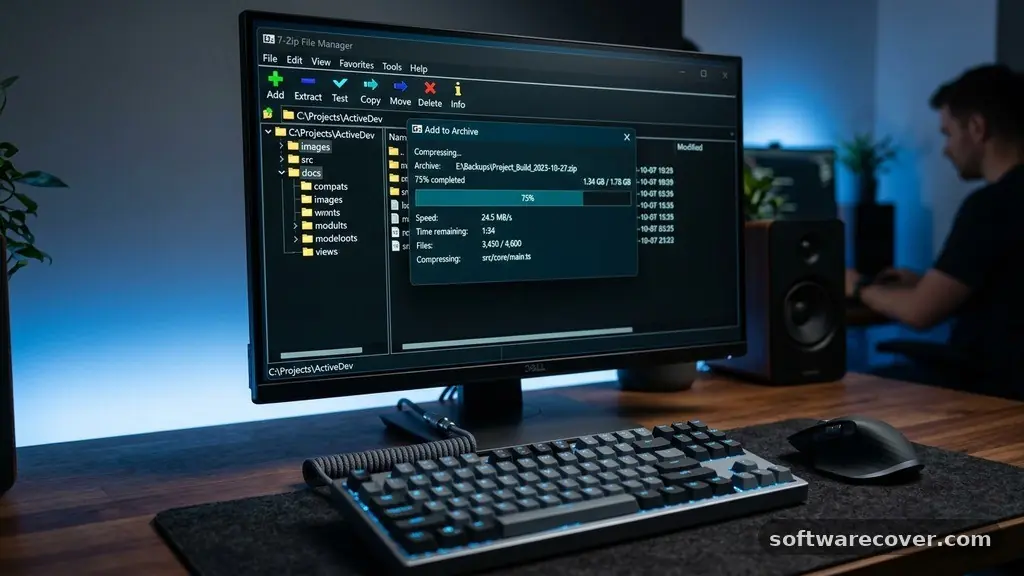
When evaluating the best Free Software for Creating ZIP Files, 7-Zip consistently emerges as the top recommendation among tech enthusiasts and professionals. It is an open-source utility that has maintained a massive user base for over two decades due to its lightweight footprint and high compression ratios. You can download 7-Zip directly from the project’s official site to ensure you have the authentic, secure version.
One of the primary benefits of this software is its native support for the 7z format, which often achieves better file size reduction than standard ZIP files. However, it remains fully compatible with ZIP, TAR, and GZIP, making it a versatile choice for cross-platform sharing. The interface is intentionally utilitarian, focusing on functionality over aesthetic flair, which keeps the program running quickly even on older hardware.
Understanding Native Windows Capabilities
Modern versions of Windows, including Windows 10 and 11, come with built-in tools for managing compressed folders. You do not always need third-party software if your only goal is to create a basic ZIP file or extract one. Simply right-click any folder, select “Send to,” and choose “Compressed (zipped) folder” to create your archive.
This native feature is perfectly adequate for occasional use. However, it lacks advanced settings like password protection, custom compression levels, or the ability to split large archives into multiple smaller volumes. If your work involves sensitive financial documents or massive media libraries, the built-in Windows tool will likely feel too limited for your needs.
PeaZip as a Feature-Rich Alternative
If you find the simplicity of 7-Zip a bit too stark, PeaZip offers a more visual and feature-rich experience. It provides a modern, graphical interface that makes managing files feel more intuitive for users who prefer icons and menus over right-click commands. It supports over 180 file formats, which is significantly more than most users will ever require in their daily lives.
PeaZip is particularly useful for users who prioritize security. It includes advanced encryption options and a secure file deletion feature that overwrites your data to prevent recovery. This makes it a great choice for those who frequently handle private information and want to ensure their archives remain inaccessible to unauthorized parties.
Comparing Popular Compression Tools
Choosing the right utility often comes down to balancing ease of use with the depth of features provided. While some users prefer the speed of a minimalist program, others value the extra control provided by a more robust interface. The following table illustrates how these common options stack up against one another in terms of key functionality.
| Software | Open Source | Password Protection | Native Interface |
|---|---|---|---|
| 7-Zip | Yes | Yes | Minimalist |
| PeaZip | Yes | Yes | User-Friendly |
| Windows Native | N/A | No | Integrated |
| WinZip (Free Trial) | No | Yes | Modern/Commercial |
Why Avoid Paid Trial Software
Many users encounter commercial software like WinZip when they first search for a way to manage their files. While these programs are highly polished and offer excellent support, they typically operate on a trial period model. Once that trial expires, you are often prompted to pay for a license or deal with persistent pop-ups and feature restrictions.
Opting for truly free, open-source software is generally the better long-term strategy for most individuals. You avoid the annoyance of “nagware” and ensure that your tools remain functional indefinitely without any hidden costs. By choosing software that is free by design rather than by trial, you gain consistency and avoid the frustration of interrupted workflows.
Key Features to Look For
When you decide which program to install, prioritize a few specific capabilities that make file management significantly easier. First, check if the software supports drag-and-drop functionality, which allows you to move files into an archive without navigating through multiple sub-menus. This simple feature can save a surprising amount of time when you are working with dozens of files at once.
Another important aspect is the integration with your file explorer’s context menu. The best programs will add an entry to your right-click menu, allowing you to compress or extract files instantly without even opening the main application window. Finally, look for support for multi-core processors, which allows the software to use your computer’s full power to finish large compression tasks much faster.
- Context menu integration for one-click operations.
- Support for high-security AES-256 encryption.
- Ability to create self-extracting executable files.
- Multi-core CPU utilization for faster processing.
- Compatibility with both legacy and modern file formats.
Security Considerations for Archives
Creating ZIP files is not just about saving space; it is also about protecting the integrity of your data during transit. When you send a file over email or cloud storage, using a password-protected archive adds a necessary layer of security. Ensure that the software you choose uses strong encryption standards like AES-256 rather than older, weaker methods that can be easily cracked.
Always remember that the password is the weakest link in your security chain. Use a unique, complex passphrase for each archive, especially if the contents are sensitive. While the software provides the lock, your password choice determines how effective that lock actually is against potential intruders.
Performance and Resource Usage
Compression is a processor-intensive task that can slow down your machine if the software is poorly optimized. You want a tool that remains responsive even when it is crunching through large sets of data. 7-Zip is widely regarded as the most efficient, but PeaZip also performs well on modern systems with sufficient RAM.
If you are working on a laptop with limited resources, test the software with a small folder first to see how it impacts your system speed. A well-designed compression tool should allow you to adjust the compression level, which helps you trade off between file size and processing time. Choosing a lower compression level can be a lifesaver when you are in a rush and need to create an archive quickly.
Frequently Asked Questions
What is the best free software for creating zip files?
The consensus among power users is that 7-Zip is the best option because it is lightweight, completely free, and highly efficient. It handles a massive range of file formats and offers robust encryption, making it a reliable choice for any Windows user.
Is WinZip actually free?
No, WinZip is commercial software that typically operates on a limited-time free trial. Once the trial period ends, you must purchase a license to continue using the software, whereas programs like 7-Zip and PeaZip are free to use forever.
Is 7-Zip better than WinZip?
For most users, 7-Zip is considered superior because it is entirely free, open-source, and lacks the intrusive marketing found in commercial products. While WinZip has a more polished interface, 7-Zip offers equal or better performance and compression capability.
Does Windows 11 have a built-in zip program?
Yes, Windows 11 includes a native tool that allows you to create and extract ZIP files without installing extra software. While convenient for basic tasks, it lacks advanced features like password protection and support for non-ZIP formats like 7z or RAR.
Can I password protect a folder without third-party software?
You cannot natively password protect a folder using standard Windows tools. To add a password, you must use a compression utility like 7-Zip or PeaZip to create an encrypted archive, which effectively serves the same purpose as a locked folder.
Closing Thoughts
Selecting the right tool for managing your archives makes a tangible difference in your digital organization. By focusing on reliable, open-source options, you can enjoy powerful compression features without the recurring costs or trial limitations associated with commercial software. Whether you stick with the minimalist approach of 7-Zip or prefer the visual interface of PeaZip, you now have the information needed to make an informed choice.
The best Free Software for Creating ZIP Files is ultimately the one that fits your workflow while keeping your data secure and accessible. Take a moment to install your preferred tool today and see how much more efficient your file management becomes.