
Successfully transferring files between two Windows computers is a common task that most users will eventually face when upgrading hardware or managing multiple devices. Whether you are moving documents to a new machine or syncing data across a home office, understanding the right method for your specific situation can significantly save time and effort.
By leveraging built-in features or external hardware, you can move your data without needing deep technical expertise or specialized software. This article explores the most reliable techniques for moving your digital assets, ensuring that your important work and personal files arrive at their destination intact and ready for use.
Using External Storage for Simple Transfers
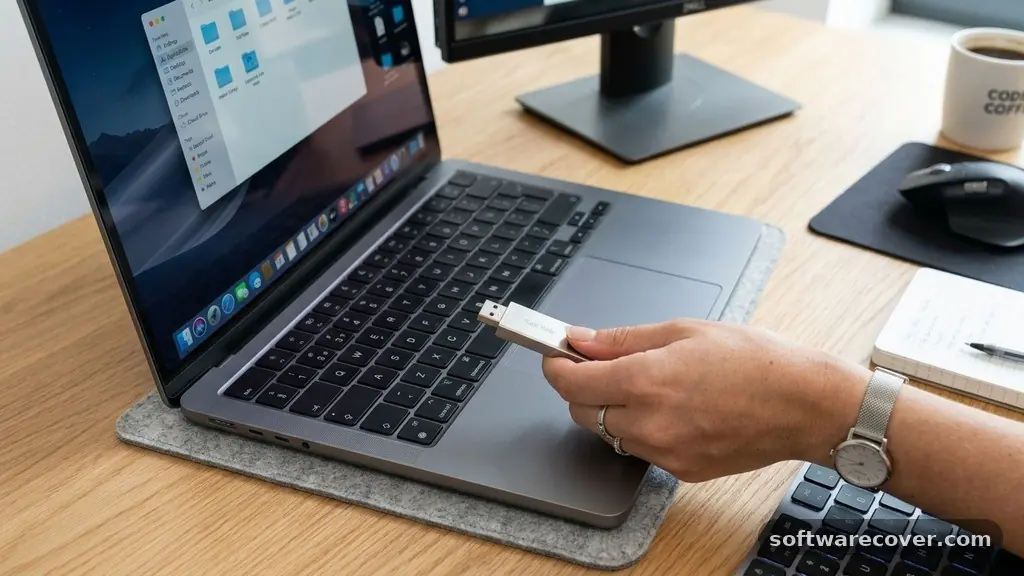
The most straightforward way to move data between two machines is through a physical bridge, such as a USB flash drive or an external hard drive. This method is ideal for users who prefer a “plug and play” approach that does not require an active internet connection or complex configuration. Simply plug your drive into the source machine, copy the desired folders, and then move the drive to the target computer to paste the data.
When selecting an external drive, ensure that the file system is compatible with both systems. Most modern drives are formatted as exFAT, which works perfectly for both Windows 10 and Windows 11.
If you are dealing with a large volume of data, consider using a drive that supports USB 3.0 or higher to ensure the transfer speed remains high. This approach effectively acts as a manual backup, giving you a secondary copy of your files while you complete the move.
Leveraging Local Network Sharing
If both of your Windows computers are connected to the same Wi-Fi or Ethernet network, you can take advantage of built-in network sharing features. This eliminates the need for physical hardware and allows you to move files directly through the router. Windows includes a feature often called “Nearby Sharing,” which functions similarly to AirDrop on other platforms.
To use this, navigate to the system settings on both devices and ensure that “Nearby sharing” is toggled to the “On” position. You can then right-click any file, select the share icon, and choose the destination computer from the list that appears.
For more granular control over entire folders, you can right-click a folder, select “Properties,” and use the “Sharing” tab to set up specific permissions for other users on your network. This is an excellent way to handle large batches of documents without needing to upload them to a cloud service first.
Understanding Cloud Syncing Solutions
Cloud storage services have transformed how we think about data accessibility. By installing a service like OneDrive, which is integrated deeply into the Windows ecosystem, you can keep your files updated across multiple machines automatically. Once you sign into the same Microsoft account on both computers, the files you save in your synced folders will appear on the second machine almost instantly.
This method is particularly useful for ongoing work rather than a one-time migration of an entire hard drive. It provides a layer of security, as your data is automatically backed up to a remote server.
You can monitor the progress of your sync via the taskbar icon, which shows you exactly which items are currently being processed. If you are interested in the official documentation regarding how Microsoft handles data security, you can visit the Microsoft Security Trust Center to learn more about their safety protocols.
Employing a Dedicated Transfer Cable
For those who need to move massive amounts of data and want a dedicated hardware solution, a specialized USB bridging cable is a viable option. Unlike a standard thumb drive, these cables come with software that creates a direct link between two computers. Once connected, a file management window opens on both screens, allowing you to drag and drop files from one side to the other.
This hardware setup is often faster than network-based transfers because it does not rely on router bandwidth or Wi-Fi signal strength. It is a one-time investment that can be highly beneficial for IT enthusiasts or professionals who frequently set up new workstations. Because the cable creates a direct path, it is also highly reliable, minimizing the chances of interrupted transfers due to connectivity drops.
Comparing Common Transfer Methods
Choosing the right approach depends on your budget, the amount of data you have, and your technical comfort level. Below is a breakdown of the most popular methods used to move data between Windows machines.
| Method | Best For | Required Hardware |
|---|---|---|
| USB Drive | Casual, one-time moves | Flash drive or external HDD |
| Network Sharing | Same-room transfers | Local Wi-Fi or Ethernet |
| Cloud Sync | Continuous, multi-device work | Internet connection |
| Transfer Cable | Bulk data migration | Specialized USB bridge cable |
Managing Large File Structures
When you are moving a high volume of data, it is important to organize your files before you start the process. Large directories with thousands of small files often transfer more slowly than a few large files of the same total size. You can compress these into a single archive file using ZIP or RAR formats to streamline the process.
Another factor to consider is the power settings of your computers. If a laptop goes to sleep during a long transfer, the process will fail or hang, requiring you to restart.
Ensure that your power plans are set to “Never sleep” while the transfer is active. Keeping an eye on your storage space on the new computer is also essential, as you don’t want to encounter an error halfway through a multi-gigabyte move.
Troubleshooting Common Connection Issues
Sometimes, the computers might not detect each other, even when they are on the same network. This is usually due to network discovery settings being disabled by default for security reasons. Go to your “Network and Sharing Center” and ensure that “Network discovery” and “File and printer sharing” are turned on for your private network profile.
If you are using a third-party firewall, it might be blocking the connection between the two systems. Temporarily disabling the firewall or adding an exception for file sharing can solve these connectivity roadblocks.
Always remember to turn your security settings back on once the task is finished to keep your data safe. If the issue persists, a simple restart of both computers often clears up minor networking glitches.
Frequently Asked Questions
Can I transfer files between two computers via a standard USB cable?
No, a standard USB-to-USB cable can damage your hardware because both ports are designed to be hosts. You must use a specifically designed “transfer cable” that has an electronic bridge chip in the middle to safely manage data flow between two computers.
How do I transfer everything from an old PC to a new one?
For a complete migration, the most reliable method is to use an external hard drive to copy your user profile and documents folder. Alternatively, you can use cloud storage to sync your files, though this requires enough storage space to accommodate your full data set.
Does file transfer speed depend on the router?
Yes, if you are using network sharing, your transfer speed is limited by the speed of your local network and the quality of your router. Using a 5GHz Wi-Fi band or a wired Ethernet connection will always provide faster and more stable results than a 2.4GHz Wi-Fi connection.
Is it safe to use public networks for file sharing?
It is strongly discouraged to use public Wi-Fi networks for sharing files. If you must move data, always use a private, password-protected network to ensure that your files remain private and are not accessible by others on the same network.
What happens if a transfer is interrupted?
Most modern file transfer managers in Windows are designed to resume where they left off if a connection is lost. However, if you are using a simple copy-paste command, you may need to manually identify which files were successfully moved and which were not, which can be time-consuming.
Conclusion
Successfully moving your data is a manageable task when you have the right tools and a clear plan. By choosing the method that best fits your specific needs—whether it is a simple USB drive for occasional use or cloud syncing for an active workflow—you ensure that your digital life remains organized and accessible. Always remember to verify that your files have landed correctly on the target machine before deleting them from the source.
Taking these small steps will make transferring files between two Windows computers a stress-free experience that keeps your productivity high. We hope these methods help you transition to your new setup with ease and confidence.