
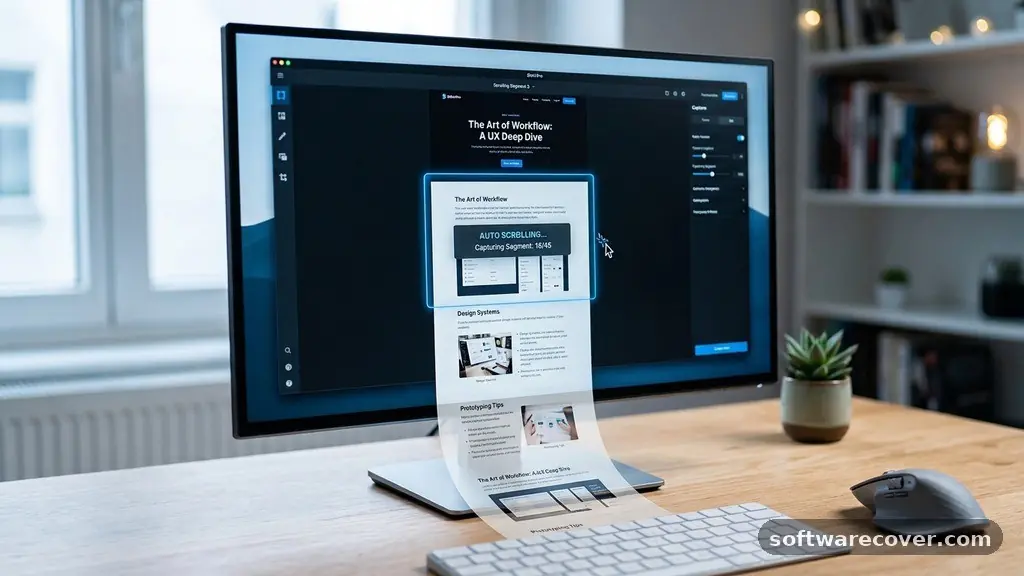
Finding the best Free Software for Taking Long Screenshots can significantly streamline your workflow, especially when you need to capture entire web pages or long chat logs that don’t fit on a single screen. Whether you are a student documenting research, a designer sharing project layouts, or a remote worker saving documentation, these tools save you from the tedious process of stitching multiple images together manually. By leveraging dedicated capture utilities, you gain precision, speed, and cleaner results without needing expensive subscriptions or complex editing suites.
The Top Recommendation for Most Users
If you are looking for the absolute best Free Software for Taking Long Screenshots, ShareX stands out as the industry standard for Windows users. It is an open-source, lightweight tool that handles scrolling captures with remarkable ease and accuracy. You can trigger a scrolling capture by selecting the “Capture” menu and choosing “Scrolling capture,” which then allows you to select the specific window or area you wish to record. It automatically scrolls through the content, stitches the frames together, and saves the final file in your preferred format. Because it is completely free and contains no hidden paywalls or advertisements, it remains the primary choice for power users who demand high performance without unnecessary costs.
Evaluating Capture Utility Capabilities
When assessing different tools for capturing extended content, you must consider how they handle dynamic web elements. Many websites use lazy loading, where images or text only appear as you scroll down the page. A high-quality tool must be able to trigger the scroll event properly so that the software can “see” the hidden content before snapping the next frame. If the software cannot interact with the browser’s rendering engine, you will end up with blank spaces or repeated sections in your final image.
The best Free Software for Taking Long Screenshots will also offer post-capture editing features. Once the long image is generated, you might need to crop out unnecessary sidebars or add annotations like arrows and text boxes.
Look for software that includes a built-in image editor, which allows you to perform these tasks immediately after the capture. This prevents the need to export your file to a separate program like Photoshop or GIMP, saving you valuable time during a busy workday.
Browser-Based Solutions for Web Content
Sometimes you do not want to install standalone software on your system. Browser extensions are often the best Free Software for Taking Long Screenshots when your needs are strictly limited to capturing web pages. Tools like GoFullPage are widely respected because they operate directly within Chrome or Edge, making them incredibly convenient for quick tasks. These extensions typically work by simulating a scroll event on the active tab, rendering the entire page as a single image file.
One major advantage of these browser-based tools is their ability to handle complex layouts. Because they reside inside the browser environment, they are less likely to be blocked by system-level security permissions.
They also allow you to save your results as PDF files, which is excellent for archival purposes or sharing reports with colleagues. If you frequently need to archive long articles or documentation, keeping an extension ready in your toolbar is a smart, low-friction approach.
Comparing Popular Capture Options
Choosing the right tool often depends on your specific operating system and technical comfort level. Below is a comparison table that highlights key features across some of the most reliable free options currently available.
| Software Name | Platform | Best Feature | Ease of Use |
|---|---|---|---|
| ShareX | Windows | Automation/Workflows | Moderate |
| GoFullPage | Browser | Simplicity | Very High |
| PicPick | Windows | Built-in Editor | High |
| Lightshot | Windows/Mac | Quick Sharing | High |
Each of these tools serves a slightly different niche. If you need heavy automation, stick with ShareX. If you need a tool that your entire team can install in seconds, a browser extension is likely the superior path.
Managing Large File Sizes
Long screenshots can quickly become massive files. When you capture a page that is several thousand pixels tall, the resulting PNG or JPEG can consume significant disk space. You should look for software that allows you to adjust the output quality or file format. Saving as a high-quality JPEG rather than a lossless PNG can often reduce your file size by half without a noticeable drop in visual clarity.
It is also important to consider the dimensions of your output. Some platforms, such as social media sites or messaging apps, have limits on the maximum image resolution they can display.
If your long screenshot exceeds these limits, the image might be downscaled automatically, making the text unreadable. Using a tool that lets you set a maximum width for your output can ensure that your final image remains legible even after it is compressed by external platforms.
Security and Privacy Considerations
When using free software, you should always be mindful of where your data goes. Many “free” tools for screen capture are actually ad-supported or collect anonymous usage statistics. While most reputable open-source projects are safe, it is wise to check the source code or official project pages to ensure your privacy is respected. You can find detailed information on software transparency and digital privacy through the Electronic Frontier Foundation to better understand how to protect your data while using free tools.
Avoid any software that asks for excessive permissions, such as the ability to read your entire file system or track your browsing history across unrelated websites. The best Free Software for Taking Long Screenshots should only require access to the screen recording API and basic file writing permissions. If a tool seems to want “too much” access, it is usually safer to find an alternative that focuses solely on the task of capturing images.
Advanced Features for Professional Workflows
The best Free Software for Taking Long Screenshots often includes features that go beyond simple capture. For example, some tools support “OCR” or Optical Character Recognition. This allows you to capture a long image and then copy the text directly out of it, which is incredibly useful for transcribing long forum threads or technical documentation. Some also include automatic scrolling that pauses at specific intervals, allowing you to manually confirm that the content has loaded correctly before the next capture segment begins.
You might also appreciate tools that support cloud integration. If you want your long screenshots to be accessible from any device, look for software that automatically uploads your captures to a cloud service like Google Drive, Dropbox, or a dedicated image hosting site.
This creates a secondary backup of your work and allows you to generate shareable links in seconds. This level of functionality can turn a simple screen capture utility into a central part of your productivity toolkit.
Common Troubleshooting Tips
Even the best software can run into issues with complex websites. If you find that your screenshot is missing parts of the page, it is usually because the website uses “infinite scroll” or complex CSS positioning. Try refreshing the page and then initiating the capture again from the very top of the scroll bar. Sometimes, disabling browser extensions that block scripts can help the capture tool interact more cleanly with the page structure.
* Ensure your browser zoom level is set to 100% before starting a capture.
* Clear your browser cache if images or text are appearing in the wrong order.
* Close unnecessary tabs to free up system memory for the stitching process.
* Check for updates to your software, as developers frequently patch issues related to browser updates.
* Try a different browser if the capture fails consistently in your primary one.
Following these steps will resolve the vast majority of errors you encounter. Most of the time, the software is working perfectly, but the underlying website’s code is simply too dynamic for a standard capture sequence to follow.
Frequently Asked Questions
Is ShareX safe to use for work computers?
Yes, ShareX is widely considered safe and is used in many professional environments. Because it is open-source, the community constantly monitors the code for security vulnerabilities, making it one of the most reliable options available.
Can I take long screenshots on a mobile device?
Most modern Android and iOS devices have built-in scrolling screenshot features. You usually see a small icon appear after taking a standard screenshot that allows you to “scroll” or “extend” the capture, meaning you may not even need third-party software on your phone.
What is the best file format for long screenshots?
PNG is generally the best format for text-heavy content because it does not lose quality during compression. If you are sharing the image on a platform with strict file size limits, a high-quality JPEG is a better alternative to keep the file size manageable.
Do I need an internet connection to use these tools?
Most dedicated desktop software like ShareX or PicPick works entirely offline. Browser extensions, however, typically require the browser to be running and may occasionally need a connection to sync settings or upload images to the cloud.
Why does my long screenshot look blurry?
Blurriness usually occurs when the image is scaled down by a viewer or when the capture tool is not capturing at the native resolution of your monitor. Always ensure you are capturing at 100% zoom and saving in a high-resolution format to keep your text crisp.
Final Thoughts on Choosing Your Tool
Selecting the best Free Software for Taking Long Screenshots depends heavily on your specific needs, whether you prefer a desktop application or a browser extension. By choosing an established, well-supported tool like ShareX or a highly-rated browser extension, you ensure that your work remains efficient and your images stay high-quality. These utilities are powerful assets that simplify the way you document information, turning what used to be a long, manual chore into a quick, automated process. Start with the basics, explore the settings to see what works best for your workflow, and you will find that managing long-form content becomes significantly easier. Feel free to experiment with these options today to see which one fits best into your daily routine.