
Learning the process for checking Software Version on a Windows PC is a fundamental skill for maintaining a healthy, secure system. Whether you are troubleshooting a compatibility issue or simply curious about your current environment, knowing exactly where to look saves time and frustration.
By mastering these built-in tools, you can identify your specific OS build or individual application updates without needing to download third-party utilities. This article provides a clear path to discovering your system details using standard Windows features, ensuring you have the information you need to keep your machine running at its best.
Using the Settings Menu for System Information
The most straightforward way to identify your operating system details is through the native Settings application. This interface has become the primary hub for Windows configuration since the release of Windows 10.
To begin, press the Windows key on your keyboard and select the gear icon to open settings. Once the window appears, look for the System category, which is usually located at the top of the list.
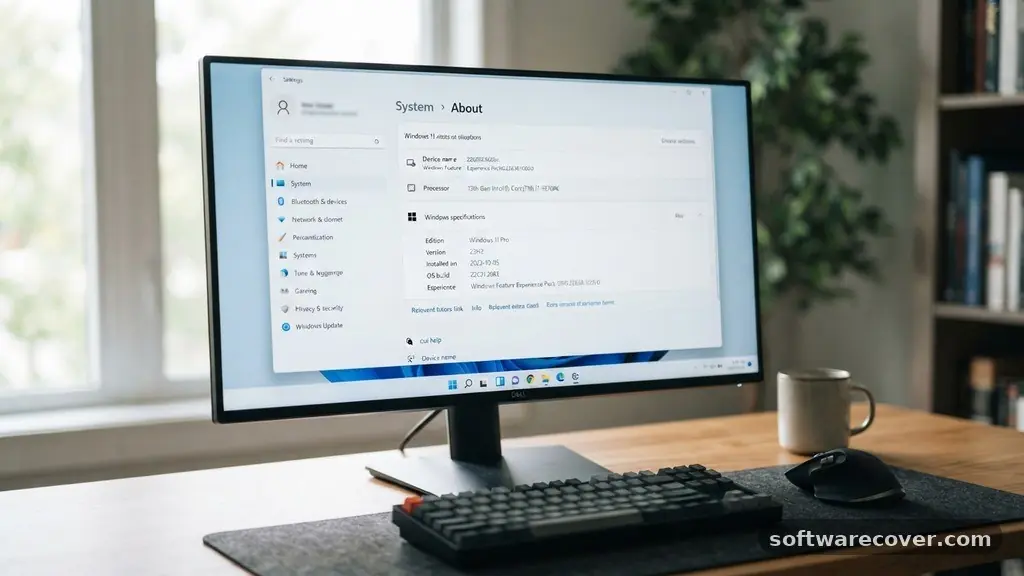
Inside the System menu, scroll down the left-hand sidebar until you reach the About option. Selecting this will present you with a comprehensive overview of your device specifications, including the edition, version, and OS build.
These numbers are vital when you need to verify if your device is fully updated or compatible with specific professional software. You can easily copy this information to your clipboard if you are preparing to share it with technical support.
Checking Individual Application Versions
While knowing your operating system is important, you often need to verify the version of a specific app installed on your machine. Every piece of software, from web browsers to productivity tools like OneNote, keeps its version history accessible within its own interface. Most programs follow a standard convention where this information is hidden under a Help or About menu.
To find this, open the software in question and look at the top menu bar for a question mark icon or the word Help. If you do not see a menu bar, try pressing the Alt key, which often reveals hidden menus in older desktop applications.
Click on About [Program Name] to see a pop-up window containing the specific version number. This is the most reliable way to ensure your software is current and receiving the latest security patches.
Leveraging the Command Prompt
For users who prefer a faster, more technical approach, the command prompt is an excellent tool for querying system data. You do not need to be a developer to use these commands effectively.
Simply press the Windows key, type “cmd” into the search bar, and press Enter to launch the terminal window. Once the black box appears, type “winver” and hit the Enter key.
This action triggers a small, persistent window that displays your exact Windows version and build number. It is a quick, no-nonsense method that provides the essential facts without requiring you to navigate through multiple sub-menus.
If you need to check version details for more advanced system components, you can also use the “systeminfo” command. This generates a long list of data points, including the original installation date and the specific kernel version currently in use.
Understanding Version Numbers and Builds
When you look at the version information for your software, you will often see a string of numbers that might look confusing. These numbers are not random; they follow a specific hierarchy that developers use to track changes, fixes, and feature additions. A typical version string might look like 10.0.19045.3086, where each segment tells a different story about the update status of your device.
The first two digits usually represent the major version, while the following digits indicate minor updates and specific build iterations. A higher build number generally means your software is more recent and likely contains fewer bugs than a lower number. Keeping track of these allows you to know exactly when a developer has released a patch that addresses a known security vulnerability on your system.
Comparing Methods for Version Detection
Different situations call for different approaches, and choosing the right one depends on whether you are checking the OS itself or a third-party application. The following table illustrates the best scenarios for each of the common methods available to Windows users.
| Method | Best Used For | Ease of Use |
|---|---|---|
| Settings Menu | General OS build verification | High |
| About Menu (App) | Individual program updates | High |
| Winver Command | Quick OS version check | Very High |
| Control Panel | List of all installed software | Medium |
Using the Control Panel for Installed Apps
The traditional Control Panel remains a powerful resource for managing your software, especially when you need to audit everything installed on your machine. To access it, type Control Panel into your search bar and select the program from the results.
Once inside, click on “Uninstall a program” under the Programs category. This displays a list of every major application currently installed on your PC.
The columns in this view typically include the publisher and the specific version of the software. If the version column is not visible, right-click on any of the column headers and select “More” to add the Version field to your view.
This is particularly useful if you are trying to clean up your drive or check for outdated software that may be causing system instability. It provides a centralized, birds-eye view that the Settings menu often lacks.
Why Version Numbers Matter for Security
It is easy to ignore update notifications, but checking your software version is a critical part of digital hygiene. Software developers frequently release updates to patch security holes that hackers might use to gain unauthorized access to your device. When you verify that you are running the latest version, you are ensuring that your system has the most modern defenses against potential threats.
Beyond security, newer versions often include performance optimizations that make your computer feel snappier and more responsive. Applications that have not been updated in years may struggle to handle modern file formats or high-resolution displays. By regularly checking your version numbers, you prevent the slow degradation of your user experience and ensure that your workflow remains uninterrupted by crashes or compatibility errors.
Troubleshooting Version Mismatches
Sometimes, you might find that a program claims to be up to date, yet you are experiencing errors that suggest otherwise. This often happens if an update was partially installed or if a system file has become corrupted. In these cases, checking the version number is the first step toward diagnosing the issue before you decide to reinstall the application.
If you confirm that your version is indeed outdated despite the software’s claims, you should visit the official website of the developer directly. Downloading updates from the source is always safer than relying on third-party updaters. If the issue persists, the version number you recorded will be essential information when you reach out to technical support for help.
Frequently Asked Questions
How do I know if I have Windows 10 or 11?
You can find this by going to Settings, selecting System, and clicking on About. The Windows specifications section will clearly state the edition and version you are running.
Does the command prompt work on all Windows versions?
Yes, the “winver” command has been a standard feature in the Windows ecosystem for decades, making it a reliable way to check your OS version regardless of your specific build.
Why is my installed software version different from the website?
Sometimes developers release updates in waves. If your software says it is up to date, it likely means that the specific version released to your region or update channel is the most recent one available for your configuration.
Can I see the version of drivers through these menus?
While these menus focus on applications and the OS, you can see driver versions by right-clicking the Start button, selecting Device Manager, and viewing the properties of specific hardware components.
Is it safe to share my version number with others?
Yes, your version number is not a piece of private, sensitive information. Sharing it with support staff or online forums is common practice when seeking help with system troubleshooting.
Checking Software Version on a Windows PC is a simple yet vital habit that empowers you to take full control of your digital environment. By using the Settings menu for high-level system checks, the command prompt for quick verification, or the individual application menus for specific software, you ensure your machine remains secure and efficient. Remember that keeping your software current is one of the easiest ways to protect your data and improve your daily productivity.
If you ever run into a problem you cannot solve, having these version numbers ready will make the support process much faster and more effective. Feel free to explore these menus today to see exactly how your system is performing.