
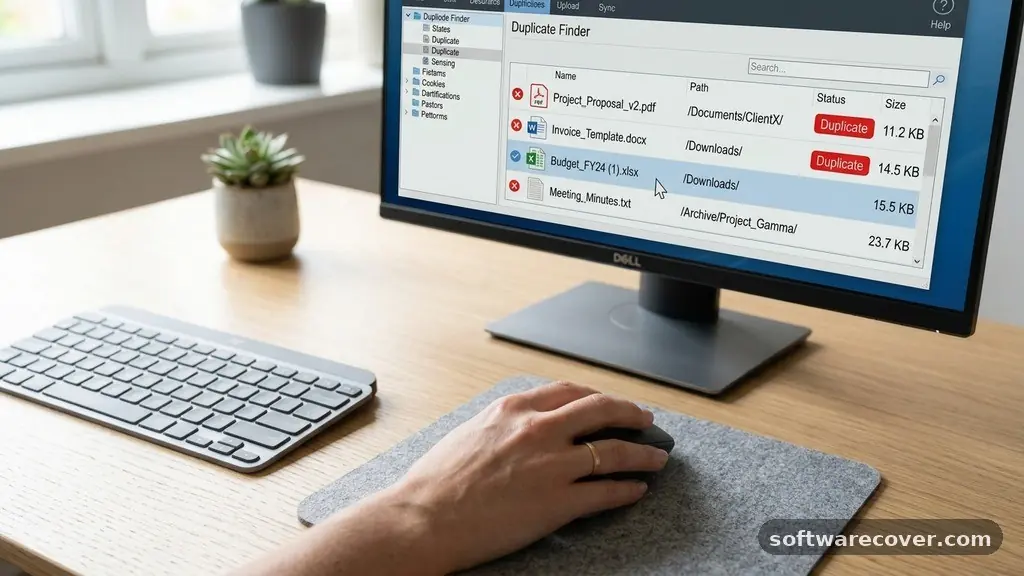
When you are managing your digital workspace, removing Duplicate Files From Your Computer is one of the most effective ways to reclaim storage space and improve system organization. Over time, redundant photos, documents, and downloads accumulate silently, often taking up gigabytes of valuable disk space without you realizing it.
Taking the time to perform a digital cleanup can make your machine run smoother and help you locate important assets much faster. This process is straightforward once you understand the tools and methods available to you.
Identifying the Root Cause of File Clutter
Most duplicate files appear because of repetitive manual copying or automated software behavior. You might have downloaded the same installer multiple times or saved a document to your desktop while a copy already existed in your documents folder. Cloud synchronization services often create “conflict” files when they struggle to sync across multiple devices simultaneously.
Another common culprit is the habit of creating backups of entire folders onto external drives or different partitions. If you regularly move files between your PC and a cloud storage service, you might accidentally trigger duplicate creation. Recognizing these patterns helps you prevent future accumulation, saving you time in the long run.
Methods for Finding Duplicates Without Software
If you prefer not to install third-party applications, you can use the built-in search features in Windows to find potential duplicates. Open your File Explorer and navigate to the folder you suspect contains the most clutter, such as your Downloads or Documents directory. Type the file extension, such as “.jpg” or “.docx,” into the search bar located in the top right corner.
Once the search results populate, change the “View” settings to “Details” and then right-click the empty space to select “Sort by” and then “Name.” This allows you to scan the list visually for files with identical names followed by a number in parentheses, which is how Windows labels automatic copies. While this method is effective for small folders, it is labor-intensive for large drives.
Leveraging Automated Cleanup Tools
For users with a massive library of files, manual searching is rarely the best approach. Dedicated duplicate file removal tools scan your entire hard drive using checksum algorithms to identify files that are identical at the binary level. This is much more accurate than simply looking for matching filenames, as it catches renamed copies that a manual search would miss.
These programs typically allow you to set specific criteria for the scan, such as ignoring system files or focusing only on specific file types like images or audio. After the scan, the software presents a list of duplicates side-by-side, allowing you to select which versions to keep and which to delete. Always check the “preview” option provided by these tools to ensure you aren’t removing a critical system component.
Safety Precautions Before Deleting Data
Before you commit to deleting anything, you must prioritize the safety of your original data. Never delete files from system directories, such as the Windows folder or Program Files, even if they appear to be duplicates. These files are often required for the operating system to function correctly, and removing them can lead to software instability.
It is a best practice to perform a full system backup before running any bulk cleanup operation. You can use the built-in Windows Backup and Restore utility to create an image of your drive. This ensures that if you accidentally remove a file you actually needed, you can recover it without stress.
Comparing File Management Strategies
Choosing the right approach depends on the volume of data you are dealing with and your comfort level with technology. The following table compares common methods for maintaining a clean file system:
| Method | Best For | Risk Level | Time Required |
|---|---|---|---|
| Manual Search | Small folders | Low | High |
| Third-Party Tools | Entire hard drives | Medium | Low |
| Command Line | Advanced users | High | Medium |
Organizing Your Digital Filing System
Once you have finished removing the excess weight from your hard drive, focus on maintaining a clean environment. Establish a consistent naming convention for your files so that you can identify them at a glance. For example, using a format like “YYYY-MM-DD-ProjectName” helps prevent the creation of ambiguous files that lead to clutter.
Create a folder structure that makes sense for your workflow, such as separating active projects from archived materials. Periodically reviewing your “Downloads” folder is a simple habit that prevents the most common source of duplicates. By keeping your file system organized, you reduce the need for frequent deep cleans.
Common Mistakes to Avoid
Many users make the mistake of deleting files based solely on the size and the date created. While these factors are helpful, they can be misleading, as some system files are intentionally duplicated to ensure programs run correctly. Never assume that a file is redundant just because it looks similar to another one in a different location.
Another common error is deleting files from an external backup drive without verifying what is on your main internal drive. Always double-check the path of the file before hitting the delete key. If you are unsure about a file, move it to a temporary folder for a few days to see if any applications complain about it being missing.
Frequently Asked Questions
Is it safe to delete all duplicate files found by software?
Most software is accurate, but you should always review the selection list before confirming deletion. Never delete files located within your Windows system folders or program installation directories, as these are often required for the computer to run properly.
How often should I scan for duplicates?
If you are a heavy user who downloads files daily, a monthly scan is a good practice. For the average user, checking your files once every three to six months is usually sufficient to keep your storage organized.
Do duplicate file removers work on cloud storage?
Yes, most tools can scan folders synced to services like OneDrive or Dropbox if those folders are mapped to your local computer. However, be cautious, as deleting files locally will also delete them from the cloud in most configurations.
Can I recover files I deleted by mistake?
If you deleted the files using the standard Windows delete command, they usually go to the Recycle Bin first. If you permanently deleted them, you may need data recovery software, which is why a backup is essential before you start.
What is a “checksum” in this context?
A checksum is a mathematical value calculated from the content of a file. If two files have the same checksum, they are identical in content, even if their names or creation dates are different.
Establishing a Cleanup Routine
The most effective way to keep your storage healthy is to treat digital maintenance as a recurring task. By setting a reminder to check your folders periodically, you prevent the accumulation of a lot of duplicate files that become difficult to manage later. You might consider using a calendar event to prompt a quick scan of your most active directories.
When you incorporate these habits, removing Duplicate Files From Your Computer becomes a quick, painless process rather than a daunting chore. You’ll find that your system responds faster and you spend less time searching for the correct version of a document. Keeping your digital space tidy is an investment in your productivity and peace of mind.
The effort you put into maintaining your file system pays off every time you open a folder and find exactly what you need without sifting through noise. If you ever feel overwhelmed by the volume of data on your machine, just remember that you don’t have to tackle it all at once. Start with one folder or one drive, and take it step by step.
If you have any specific folders that seem to accumulate clutter faster than others, prioritize those first to see the biggest immediate impact on your available storage. Happy organizing, and enjoy a much faster, more efficient computer.