
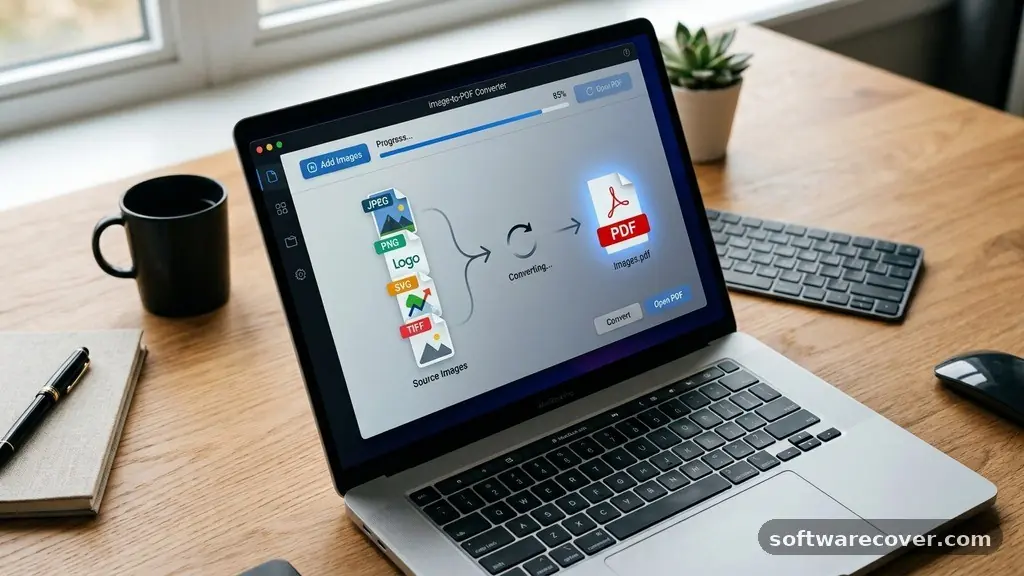
Finding the best Free Tools to Convert Images to PDF can save you significant time when you need to assemble documents for work, school, or personal projects. Whether you are dealing with scanned receipts, photography portfolios, or simple screenshots, having a reliable method to merge these into a single file is essential.
This article highlights the most effective, accessible, and secure solutions available today, helping you manage your digital paperwork without spending a cent. You will learn how to choose the right software for your specific device and why some methods outperform others in terms of privacy and speed.
Top Rated Software for PDF Conversions
When you need to convert images to a PDF, the best Free Tools to Convert Images to PDF are those that balance ease of use with data security. Desktop software often provides the most stability, especially when you are processing large batches of high-resolution files.
Programs like LibreOffice or dedicated PDF managers allow you to perform these actions offline. Offline processing is a major advantage for sensitive documents because your files never leave your local machine during the conversion process.
Many users prefer open-source alternatives because they are transparent and lack the aggressive upselling found in commercial products. If you are using Windows or macOS, native tools like “Print to PDF” are often overlooked but highly capable.
You simply open your image file, select the print function, and choose the PDF virtual printer as your destination. This method is built into your operating system, meaning you do not need to install any additional software or risk downloading potentially malicious third-party apps.
Using Online Converters Safely
If you prefer a web-based approach, there are many reputable websites that allow you to convert JPG to PDF in seconds. The primary benefit of these tools is their accessibility; you can use them from any browser on a smartphone, tablet, or laptop. However, you must be mindful of privacy.
Always check the site’s policy on file retention. Reputable platforms usually delete your uploaded images and generated PDFs from their servers within a few hours.
To ensure your information remains private, avoid uploading documents that contain sensitive data, such as tax forms, medical records, or government identification. Use these online services primarily for non-confidential images like travel photos or public documents.
If you need to handle highly sensitive information, stick to the offline desktop methods mentioned previously. Many users find that a mix of both strategies—online for convenience and offline for security—is the most balanced approach.
Comparing Conversion Methods
Choosing between different tools depends on your specific workflow. Some users prioritize speed, while others care more about the final quality of the document. The table below compares the common ways to handle image-to-PDF tasks.
| Method | Ease of Use | Privacy Level | Internet Required |
|---|---|---|---|
| System Print Function | High | Excellent | No |
| Open Source Apps | Medium | Excellent | No |
| Web-based Converters | Very High | Moderate | Yes |
| Mobile OS Shortcuts | High | High | No |
Each of these methods serves a different purpose. If you are in a rush and on a mobile device, using the built-in sharing features of iOS or Android is often the fastest route. If you are at a desk and have hundreds of files to process, a dedicated desktop application will save you from the tedious task of uploading each file individually.
Built-in Features on Mobile Devices
Modern smartphones have become powerful enough to handle basic document management without needing extra apps. On an iPhone, the Files app and the Photos app allow you to select multiple images and convert them into a single PDF.
You simply tap the share icon, select “Print,” and then use a pinch-out gesture on the print preview to save the image as a PDF. This trick is a hidden gem for anyone trying to avoid cluttering their phone with third-party software.
Android users have similar functionality through the Google Photos app or the system file manager. By selecting your desired files and choosing the “Print” option, you can save the output as a PDF file directly to your local storage.
These native features are optimized for your device’s hardware, resulting in faster processing times and better battery efficiency. Relying on these tools is generally safer than granting permissions to unknown third-party apps that may track your usage or display intrusive advertisements.
Managing Large Batches of Images
When you have a large project, such as digitizing a physical book or a long series of receipts, manual conversion becomes impractical. You need a tool that supports batch processing. Some free desktop software allows you to drag and drop an entire folder of files into the window.
It then automatically stitches them into a single, multi-page PDF document in the order you specify. This saves significant time compared to converting individual files one by one.
If you are a power user, consider learning to use command-line utilities. Tools like ImageMagick are incredibly powerful and allow for complex automation.
While they have a steeper learning curve, they provide unparalleled control over the output, including compression settings and file naming conventions. For those who aren’t tech-savvy, sticking to graphical user interface (GUI) apps that support batch operations is the best way to maintain productivity without getting bogged down in technical configuration.
Maintaining Image Quality and File Size
One common challenge when converting images to PDF is managing the balance between visual quality and file size. High-resolution images can result in massive PDF files that are difficult to email or upload to cloud services.
Most of the best Free Tools to Convert Images to PDF include settings to adjust the compression level. You can often choose to keep the original resolution or downsample the images to make the file more manageable.
If your primary goal is to share a document, aim for a resolution between 150 and 300 dots per inch (DPI). This range is typically sufficient for viewing on screens and printing on standard office paper.
Avoid using extremely high DPI settings unless you are preparing a document for professional-grade printing. You can find more information on standard document formats through the International Organization for Standardization guidelines on PDF specifications.
Tips for Better Organization
Converting your images is only half the battle; keeping them organized is just as important. Once you have a collection of PDFs, implement a consistent naming convention.
Use dates or project titles at the beginning of each filename to make them easier to search. For example, using “2023-10-27_Receipts.pdf” is much more effective than “IMG_001.pdf.”
Consider using a cloud-based folder structure to back up these files. If you keep your PDFs in a synchronized folder, you can access them from any device.
This ensures that you never lose important documents, even if your primary computer or phone is lost or damaged. Regularly auditing your folders to remove duplicates or outdated versions will keep your digital workspace clean and efficient.
Common Pitfalls to Avoid
Many free tools are supported by advertisements, which can sometimes lead to clicking on misleading download buttons. Always verify that you are clicking the official link for the software you intend to use.
Avoid sites that force you to create an account or provide an email address just to perform a simple conversion. Legitimate tools should be straightforward and respect your privacy.
Another pitfall is the loss of image orientation. Sometimes, when converting from mobile, the images might rotate incorrectly in the final PDF.
Always perform a quick check of the generated document before deleting your original source images. If you notice persistent orientation issues, look for software that allows you to rotate individual pages within the PDF editor before saving the final file.
Frequently Asked Questions
What is the safest way to convert images to PDF?
The safest way is to use the built-in print-to-PDF functionality provided by your operating system. This keeps your files on your local device and prevents them from being uploaded to third-party servers.
Can I convert images to PDF without losing quality?
Yes, most tools allow you to choose high-quality or lossless settings. However, be aware that this will result in a larger file size, which might make the document harder to share via email.
Do I need to install software for these conversions?
Not necessarily. You can use native OS features like the print dialog, or you can use browser-based tools. Only install software if you require advanced features like batch processing or offline security.
Are there any limits on the number of files I can convert?
Desktop software typically has no limits other than your computer’s processing power. Online tools often impose limits on file size or the number of conversions per hour to prevent server overload.
How do I combine multiple images into one PDF?
Most PDF management tools or the system print dialog allow you to select multiple images at once. Once selected, you can arrange them in your preferred order before clicking the “Convert” or “Print” button to merge them into a single document.
Conclusion
Finding the right approach to digitize your documents doesn’t have to be complicated or expensive. By utilizing the native tools already present on your phone or computer, you can achieve professional results without the risks associated with third-party software. Whether you are using a desktop application for batch tasks or a simple print function for a single file, the best Free Tools to Convert Images to PDF are those that fit seamlessly into your existing workflow.
Take a moment to experiment with the built-in features on your own devices today. You will likely find that you already have everything you need to manage your images effectively and securely.