
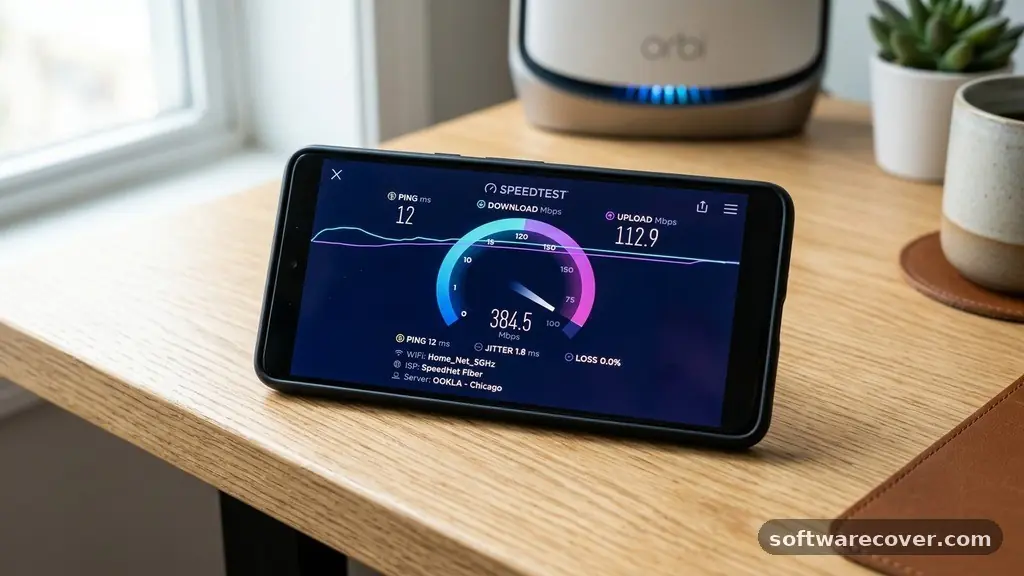
Finding the best free software for checking Wi-Fi speed is the quickest way to determine if you are actually getting the internet performance you pay for. Whether you are troubleshooting a laggy video call or simply curious about your current bandwidth, these diagnostic tools provide instant, actionable data.
By utilizing reliable, ad-supported, or open-source utilities, you can identify bottlenecks in your home network without spending a dime. This article explores how to select the right tool for your specific setup, ensuring you get accurate readings every single time you hit the start button.
The most accurate and widely recognized tool for measuring your connection is the Speedtest by Ookla platform. It works by connecting your device to the nearest server to measure latency, download throughput, and upload capacity in real-time.
You will see your results expressed in Mbps, which stands for megabits per second. This figure represents the volume of data your connection can move per second, and it is the standard metric used by internet service providers globally.
Understanding Your Connection Metrics
When you run a diagnostic, you are usually looking at three distinct numbers. Download speed is the most common metric, representing how fast your device pulls data from the internet.
This is what matters when you are streaming high-definition video, downloading large files, or browsing complex websites. A higher number here generally indicates a more responsive browsing experience across all your connected devices.
Upload speed is equally vital for modern internet usage. This metric tracks how quickly you send data from your computer or phone to the network.
If you frequently participate in video conferences, upload content to social media, or back up files to cloud storage, you need a decent upload rate. Many residential plans offer asymmetrical speeds, meaning your upload rate is significantly lower than your download rate.
Latency, often measured in milliseconds, describes the delay in your connection. It is sometimes referred to as ping.
A low ping is essential for gaming and real-time communication because it measures the time it takes for a signal to travel from your device to a server and back. High latency results in the “lag” that makes online play or live conversations frustratingly out of sync.
Choosing Between Browser and Desktop Apps
Deciding whether to use a web-based portal or a dedicated software client depends on your hardware. Browser-based tools are incredibly convenient because they require no installation.
You simply open a tab, click a button, and wait for the results. These are ideal for quick checks on laptops or tablets where you do not want to manage extra software files.
Desktop applications, however, offer superior precision. Because they run directly on your operating system, they bypass the potential overhead and limitations of a web browser.
If you have a high-speed fiber connection, a browser might struggle to keep up with the data throughput, leading to inaccurate, lower-than-actual results. A native app is designed to handle high-bandwidth scenarios more effectively.
Mobile apps are the best choice for mapping Wi-Fi dead zones in your home. Since your phone is portable, you can walk from room to room while keeping the diagnostic tool active.
This allows you to see exactly where your signal drops off and where interference from walls or electronic devices might be impacting your performance. Using a mobile app is the most practical way to optimize your router placement.
The Role of Server Selection
The server you choose to test against has a massive impact on your final report. Most high-quality tools automatically detect your location and select the server physically closest to you. This is intended to minimize the distance data must travel, giving you the most optimistic and accurate view of your local network’s potential.
Sometimes, the default server might be congested or under maintenance. If you suspect your results are unusually low, try manually selecting a different server in the same region.
This can help you determine if the issue lies with your ISP or with the specific route your traffic is taking to the internet. Consistent testing across different servers provides a more holistic view of your connection health.
Avoid testing against servers located on the other side of the country or in a different continent. The physical distance introduces inevitable delays that do not accurately reflect your home network’s capabilities. Always prioritize servers that are geographically near your current location for the most reliable, actionable info.
Comparing Common Diagnostic Tools
There are many options available, but not all provide the same level of quality. Some tools are bloated with excessive ads or collect too much user data, while others are clean and efficient. Below is a comparison of common features found in the best free software for checking Wi-Fi speed.
| Tool Name | Best For | Key Feature |
|---|---|---|
| Ookla Speedtest | General Users | Largest global server network |
| Fast.com | Streaming Fans | Uses Netflix servers to test video capacity |
| Google Speed Test | Quick Checks | Directly integrated into search results |
| LibreSpeed | Privacy-focused | Open-source with zero telemetry |
Common Factors That Influence Results
Your results are rarely static. The number of devices currently using your network will drastically change your speed test output.
If someone is streaming 4K video or downloading a large game update while you are testing, your reported Mbps will be significantly lower than your plan’s maximum. Always ensure your network is idle if you want to measure your true peak performance.
The hardware you use to perform the test also matters. Older devices with outdated Wi-Fi chips may not be capable of reaching the full speeds provided by your router.
If you are testing on an old smartphone, you might see a bottleneck that doesn’t exist on your modern desktop computer. Always run tests on multiple devices to rule out hardware limitations.
Interference from other electronics can also degrade your wireless signal. Microwaves, cordless phones, and even neighboring Wi-Fi networks can create noise on the 2.4GHz or 5GHz bands.
If your test results fluctuate wildly, try moving closer to your router or switching to a less congested channel. These environmental factors are often the hidden culprit behind slow internet.
Identifying Network Bottlenecks
If your speed test consistently shows results well below what you pay for, it is time to investigate your local setup. The first step is to connect your computer directly to the router using an Ethernet cable.
If the speed improves significantly compared to your Wi-Fi test, the issue is almost certainly your wireless signal. This could be due to range, physical obstructions, or signal interference.
If the wired connection is still slow, the problem might be your router or the modem provided by your ISP. Older routers often struggle to manage the traffic demands of modern smart homes.
If your router is more than five years old, it may be time for an upgrade. Check if your hardware supports the latest standards, as these provide better throughput and more efficient data handling.
Sometimes, the bottleneck is external. Your ISP may be experiencing local outages or bandwidth throttling during peak usage hours.
By running tests at different times of the day, you can build a data set that proves whether your connection is consistently slow or only drops during specific periods. This information is invaluable when you call customer support to complain about poor service.
Essential Tips for Reliable Testing
To get the best data, consistency is key. Always try to test from the same spot in your house using the same device.
This creates a baseline that allows you to compare performance over time. If you move your laptop to a different room, you introduce new variables that make it impossible to tell if a speed change is due to the network or your new location.
Disable any VPN services before running a test. VPNs reroute your traffic through a remote server, which adds encryption overhead and distance.
This will almost always result in lower speeds and higher latency. While this is great for privacy, it does not give you an accurate picture of your actual ISP-provided bandwidth.
Keep your browser clean. Extensions that block ads or track traffic can sometimes interfere with the way a speed test script runs in your browser.
If you are getting strange or inconsistent results, try running the test in an incognito or private window. This ensures that no browser-based add-ons are affecting the measurement process.
Frequently Asked Questions
Is there a reliable way to check my speed for free?
Yes, there are several reputable, free services available. Tools like Ookla, Fast.com, and Google’s own speed utility provide fast, accurate data without requiring a subscription or payment.
Why do my results change every time I run a test?
Internet speeds fluctuate based on network traffic, your distance from the router, and other devices using your connection. It is normal to see slight variations between consecutive tests.
Does using a free speed test app compromise my privacy?
Most reputable apps are safe, but it is always wise to check the privacy policy. Avoid apps that ask for unnecessary permissions, such as access to your contacts or location history, unless those permissions are required for the app to function.
What is the difference between Mbps and MB/s?
Mbps stands for megabits per second, which is how ISPs measure bandwidth. MB/s stands for megabytes per second, which is how file sizes are typically measured; there are 8 bits in a single byte.
Can I test my Wi-Fi signal strength separately?
While speed tests measure throughput, they don’t always show signal strength. For signal mapping, look for “Wi-Fi analyzer” apps, which provide more detailed info on decibel levels and channel interference.
Optimizing Your Wireless Experience
Selecting the best free software for checking Wi-Fi speed is only the beginning of your journey toward a faster network. Once you have the data, you can use it to make informed decisions about your hardware and service plan. Whether you need to relocate your router, upgrade to a more modern mesh system, or simply contact your ISP with hard evidence, these tools empower you to take control.
Regularly auditing your connection helps ensure you are getting the value you deserve from your monthly bill. Keep your diagnostic tools handy, stay observant of your network environment, and you will enjoy a more responsive digital life. If you encounter persistent issues, do not hesitate to reach out to your provider with your findings in hand.