
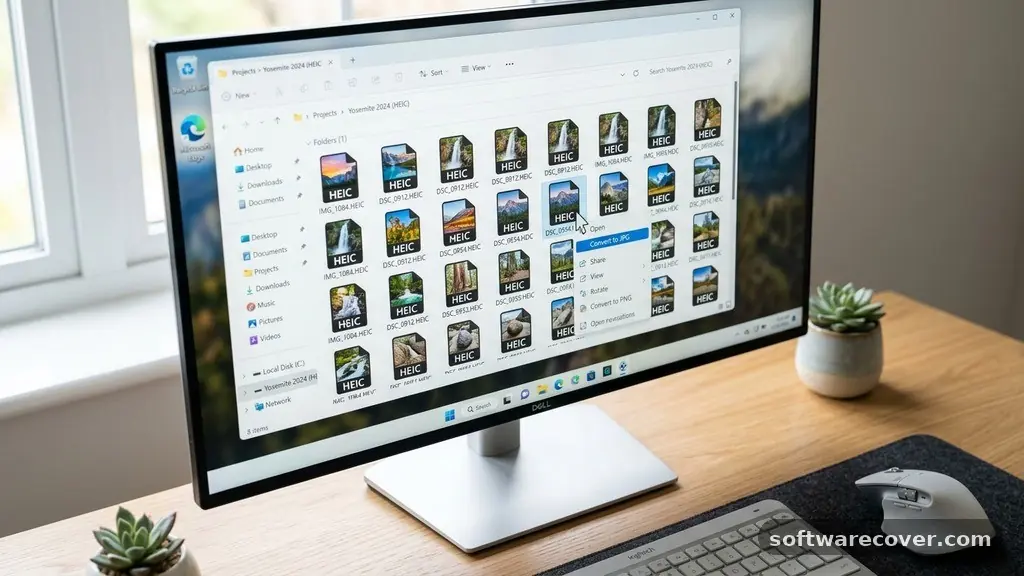
Learning how to convert HEIC images to JPG on Windows is a practical skill for anyone who frequently shares photos taken on an iPhone or iPad. Because Apple uses the High Efficiency Image Container format by default to save storage space, these files often appear incompatible when moved to a PC.
By mastering the process of converting HEIC images to JPG on Windows, you ensure that your memories remain accessible across all your devices. Whether you are a professional photographer or just organizing your personal gallery, understanding these simple methods will save you time and prevent unnecessary frustration during your next file transfer project.
The Fastest Way to Open HEIC Files
If you simply need to view your images rather than process them, you might not need a full conversion workflow. Windows 10 and Windows 11 provide built-in support for these files, provided you have the right components installed.
You can obtain the official HEIF Image Extensions directly from the Microsoft Store. Once installed, your standard Photos app will recognize the file format instantly.
This extension essentially teaches your operating system how to read the Apple-native container. It does not technically change the file, but it makes the file format compatibility issues disappear for casual browsing.
This is the most efficient route if your goal is just to see the images or print them from a basic viewer. It is a lightweight solution that keeps your system clean of unnecessary third-party software.
Using CopyTrans HEIC for Seamless Integration
For users who want to treat HEIC files exactly like regular JPEGs, third-party plugins offer a more integrated experience. CopyTrans HEIC is a popular tool that adds native support for these files to your File Explorer. After a quick installation, you can simply right-click any HEIC file in your folders and select a conversion option.
This method is particularly effective because it allows for direct, one-click conversion without opening an external program. It maintains the original metadata, which is crucial if you rely on timestamps or geolocation data for your photo organization.
Because it integrates directly into the Windows shell, it feels like a native feature of your computer. It is a reliable choice for anyone who handles these files on a daily basis.
Batch Conversion with Dedicated Software
If you have hundreds of photos to process, doing them one by one is not a viable strategy. You need a solution that supports batch conversion to handle large folders in a single pass. Many free tools allow you to drag and drop entire directories into a queue to change their format automatically.
When selecting a tool for batch processing, look for software that offers adjustable image compression settings. You want to ensure the final output quality matches your expectations without creating massive file sizes.
Setting your output quality to 90% or higher is usually the sweet spot for maintaining visual fidelity. This approach ensures that you aren’t sacrificing the detail of your original captures while gaining the universal compatibility of the JPEG format.
Comparing Conversion Methods
Choosing the right method depends on your technical comfort level and the volume of files you process. Some users prefer the simplicity of cloud-based tools, while others prioritize privacy by keeping their data local. The following table highlights the differences between the most common approaches to managing these file types.
| Method | Best For | Privacy Level |
|---|---|---|
| Microsoft Extensions | Casual viewing | High |
| Right-click Plugin | Quick, frequent use | High |
| Batch Converter | Large archives | Medium/High |
| Online Converters | Occasional single files | Low |
Why Apple Uses the HEIC Format
Understanding why this format exists can make the transition process less annoying. The High Efficiency Image Container is designed to store high-quality images in roughly half the space of a standard JPEG. This is a massive benefit for mobile devices with limited onboard storage, allowing users to keep thousands more photos on their phones.
The format uses advanced image compression algorithms that preserve more detail while stripping away redundant data. However, the trade-off is that many legacy systems and older web browsers do not natively support the container.
While it is technically superior for storage, the ubiquity of the JPEG standard means you will inevitably need to switch formats for broader compatibility. It is a classic case of modern efficiency clashing with established industry standards.
Avoiding Common Conversion Pitfalls
When you start converting your library, you may encounter issues with metadata loss or file corruption. It is important to use software that explicitly mentions support for EXIF data, as this contains your camera settings and dates. Without this data, your photos might lose their chronological order in your digital archive.
Always keep a backup of your original HEIC files until you are certain the conversion was successful. If you accidentally overwrite your original files with lower-quality JPEGs, you cannot recover the lost image data later.
Think of the conversion process as a secondary archive rather than a replacement for your source files. By maintaining a dual-library system during the transition, you protect your digital history from accidental loss.
Manual Conversion Tips for Windows Users
If you prefer not to install any software, you can leverage cloud storage services as a bridge. Uploading your files to a service like Google Photos or OneDrive often triggers an automatic server-side conversion when you download them back to your machine. This is a clever workaround for users who do not want to manage third-party plugins or desktop software.
Simply upload the files to your preferred cloud account and wait for the sync to complete. When you download the image to your PC, the cloud service often provides a standard file format that is ready for editing or sharing.
While this is not the fastest method for massive collections, it is perfectly adequate for the occasional handful of photos. It keeps your local system bloat-free while solving your compatibility problems.
Frequently Asked Questions
Does converting HEIC to JPG reduce image quality?
Because both formats are lossy, any conversion involves some degree of re-encoding. However, if you set your conversion quality to 90% or higher, the visual difference is virtually imperceptible to the human eye. You are essentially moving data from one compressed container to another, which is generally safe for most standard photography.
Can I convert my files offline for better security?
Yes, using local software like CopyTrans or dedicated desktop batch converters ensures that your images never leave your machine. This is significantly more secure than using web-based tools that require you to upload your personal photos to a remote server. For sensitive or private images, local processing is always the recommended path.
What happens to my metadata during the process?
Reputable conversion software is designed to preserve metadata, including the date taken, camera model, and GPS coordinates. If you find your photos are missing this information after conversion, it is likely that the specific software you are using is stripping it to save space. Check the settings of your tool to ensure “Keep Metadata” or “EXIF data” is enabled.
Is it possible to convert files in bulk for free?
There are several open-source and freeware utilities available that handle batch conversion without charging a fee. Most of these tools are community-maintained and offer robust features that rival paid software. Just be sure to download these tools from reputable developer websites to avoid bundled adware.
Will my Windows 11 system eventually support HEIC natively?
Windows 11 already supports HEIC files, but it requires the installation of the HEIF Image Extensions mentioned earlier. Once these are installed, the operating system handles the files as if they were JPEGs. It is unlikely that Microsoft will change this in the near future, as keeping the extension separate helps maintain a leaner base operating system.
Final Thoughts on Photo Management
Managing your digital library effectively requires a clear understanding of your file formats. By learning how to convert HEIC images to JPG on Windows, you are taking control of your archive and ensuring that your images remain viewable for years to come. Whether you choose a simple plugin for your file explorer or a powerful batch processing tool, the goal is to make your workflow as smooth as possible.
Don’t be afraid to experiment with different tools to find the one that fits your specific organizational style. As you continue to build your photo collection, these small technical adjustments will pay dividends in accessibility and peace of mind. Keeping your files ready for any platform is a simple but essential step in modern digital life.