
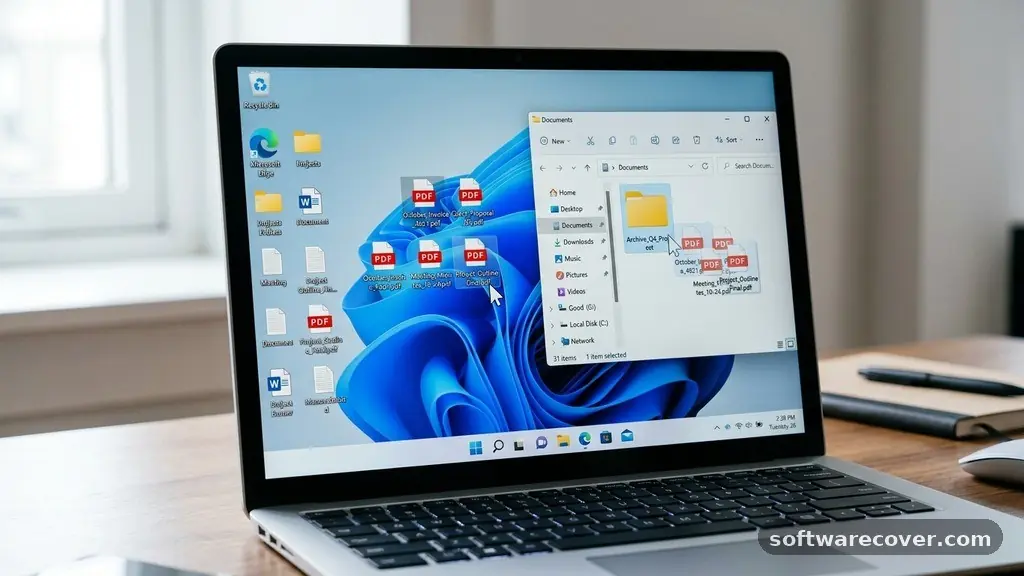
Learning the process of merging PDF files on a Windows PC is a practical skill that helps keep your digital documents organized and professional. Whether you are combining scanned receipts, grouping project reports, or organizing personal records, knowing how to manage these files effectively saves significant time.
You do not need expensive proprietary software to achieve these results, as several reliable methods are available directly within your operating system or through trusted third-party tools. This article provides a clear look at how you can handle your document management tasks with ease and efficiency, ensuring your files are always in the right order.
Using Built-in Windows Features
Many users are surprised to learn that Windows does not include a dedicated, native “Merge” button for PDF documents within the basic File Explorer. While you can print to PDF or manage files, the operating system relies on specific workflows to join documents together.
You can often leverage the “Print to PDF” function as a creative workaround to combine content from different sources. This involves opening your documents and essentially “printing” them into a single new file by selecting the Microsoft Print to PDF option.
This method works best when you have multiple documents that you want to consolidate into one sequence. You open the first file, select print, and choose the Microsoft Print to PDF printer. When prompted, you save the file and then repeat the process for subsequent documents.
While this is a functional approach, it is manual and can be tedious if you have dozens of pages to manage. It remains, however, the safest way to merge files without installing any additional software on your computer.
Leveraging Third-Party Desktop Software
When you have a high volume of documents to process, installing a dedicated desktop application is the most efficient path. Tools like PDF24 Creator or PDFsam Basic are widely recognized for their speed and privacy-focused design.
These programs run locally on your hardware, meaning your sensitive documents never leave your machine to be processed on a remote server. This is a crucial distinction for users who handle confidential business records or private personal data.
These applications typically feature a drag-and-drop interface that makes the task of merging PDF files on a Windows PC incredibly fast. You simply open the program, drag your files into the workspace, and rearrange them into the desired order. Once you are satisfied with the sequence, you trigger the merge command.
The software then generates a single, consolidated document in seconds. Most of these tools also allow you to extract specific pages before the merge, giving you granular control over the final output.
The Role of Web-Based PDF Tools
If you only need to combine documents occasionally, web-based tools provide a convenient solution that requires zero installation. Websites like iLovePDF offer straightforward interfaces where you upload your files, arrange them, and download the combined result.
This method is excellent for quick tasks when you are away from your primary workstation or using a computer where you cannot install software. You should, however, remain mindful of data privacy when uploading sensitive documents to public servers.
The process on these sites is usually identical across platforms. You navigate to the site, select the merge tool, and upload your files from your local drive. After the system processes the files, it provides a secure link to download your new, unified document.
These platforms often include additional features like compressing the file size, which is useful if your combined PDF is too large to send via email. Always check the site’s terms of service regarding how long they store your uploaded data.
Comparing Different Merging Approaches
Choosing the right method depends on your frequency of use, your privacy requirements, and the volume of documents you handle. Some users prefer the speed of desktop software, while others prioritize the convenience of web tools. The following table provides a quick comparison of the most common ways to manage your PDF files.
| Method | Privacy Level | Installation Required | Best For |
|---|---|---|---|
| Desktop Software | High (Local) | Yes | Frequent, sensitive tasks |
| Web-Based Tools | Low to Medium | No | Occasional, quick tasks |
| Print to PDF | High (Local) | No | Simple, few-page jobs |
Managing Document Order and Page Selection
One of the most important aspects of merging documents is ensuring the pages appear in the correct sequence. When you select files to combine, most software will default to an alphabetical or chronological order based on the file name.
If your files are named “Report_Part_01,” “Report_Part_02,” and so on, the software will usually handle the sequencing automatically. If your files have random names, you will need to manually drag and drop them into the correct position within the application’s interface.
Beyond just ordering full files, advanced users often want to merge specific pages from different documents. Many PDF utilities allow you to expand a file within the merge window to see individual page thumbnails.
From this view, you can delete unnecessary pages, rotate them if they were scanned upside down, or insert a page from one document into the middle of another. This level of customization ensures that your final document is polished, professional, and free of redundant information.
Security Considerations for PDF Files
Whenever you handle digital documents, security should be a priority. Merging files often involves combining sensitive information such as bank statements, legal agreements, or health records.
If you choose to use an online service, ensure that the provider uses encrypted connections and promises to delete your files from their servers immediately after the download is complete. For highly confidential documents, stick to local, offline software that does not require an internet connection to perform the merge.
You should also consider the metadata attached to your PDF files. Sometimes, merging documents can inadvertently carry over hidden information from the original files.
If you are sharing the document externally, check the properties of the final file to ensure no sensitive author names or internal comments are visible. Using a reputable desktop tool often gives you the option to “flatten” or sanitize the document, which removes these hidden layers and creates a clean, secure file for distribution.
Common Issues and Troubleshooting
Even with the best tools, you might encounter occasional errors while merging files. One common issue is a password-protected PDF, which cannot be merged until the security restrictions are removed.
You will need to enter the owner password to unlock the file before the software can read and append its content to another document. Another frequent problem is a file that is corrupted or formatted with non-standard PDF structures, which can cause the merge process to hang or fail.
If a merge fails, try opening the problematic file in your standard PDF viewer and performing a “Save As” to create a fresh copy. This simple action often resolves underlying formatting issues that prevent the merge software from processing the data.
If you are using an online tool and the file is very large, consider compressing the individual files before attempting to combine them. This reduces the upload time and minimizes the risk of a connection timeout during the processing phase.
Frequently Asked Questions
Does Windows 11 have a native way to merge PDFs?
Windows 11 does not have a built-in “merge” tool in its default file management system. You must either use a third-party application or the “Print to PDF” function to manually combine your documents.
Is it safe to merge PDF files online?
It depends on the platform you choose. Reputable sites generally encrypt your data and delete files after a short period, but for highly sensitive or private information, using offline desktop software is always the safer choice.
Can I merge PDFs that are password protected?
You can, but only if you have the password. You must first unlock the individual document using your PDF reader before the merging tool can access its content to add it to a larger file.
Will merging PDFs reduce their quality?
In most cases, no. Modern merging tools simply append the data from one file to another without re-encoding the images or text. However, if you choose a setting that compresses the file during the merge, you might notice a slight reduction in image clarity.
What is the best free software for merging PDFs on Windows?
There are several excellent free options, such as PDFsam Basic and PDF24 Creator. These tools are open-source or free for personal use and offer a secure, local way to combine your documents without any hidden costs.
Final Thoughts on Document Management
Mastering the art of merging PDF files on a Windows PC is a straightforward way to improve your daily digital workflow. By choosing the right tool for your needs—whether that is a simple local application or a quick web-based utility—you can keep your digital workspace tidy and your documents easy to share. Remember to prioritize your data privacy by opting for offline software whenever you handle sensitive or personal information.
With these strategies in mind, you will find that managing complex document sets becomes a quick and stress-free part of your routine. If you have any further questions about optimizing your PDF workflow, feel free to reach out and explore more tips for better digital organization.