
Finding the best Free Software for Renaming Multiple Files can turn a chaotic digital folder into a perfectly organized library in seconds. Whether you are dealing with thousands of vacation photos, years of scanned documents, or a messy music collection, manual renaming is simply not an option.
By using specialized batch tools, you can replace text, add dates, or append serial numbers to hundreds of items simultaneously. This article highlights the most effective, reliable, and cost-free utilities available today to help you regain control over your file system without spending a dime.
Bulk Rename Utility: The Powerhouse Option
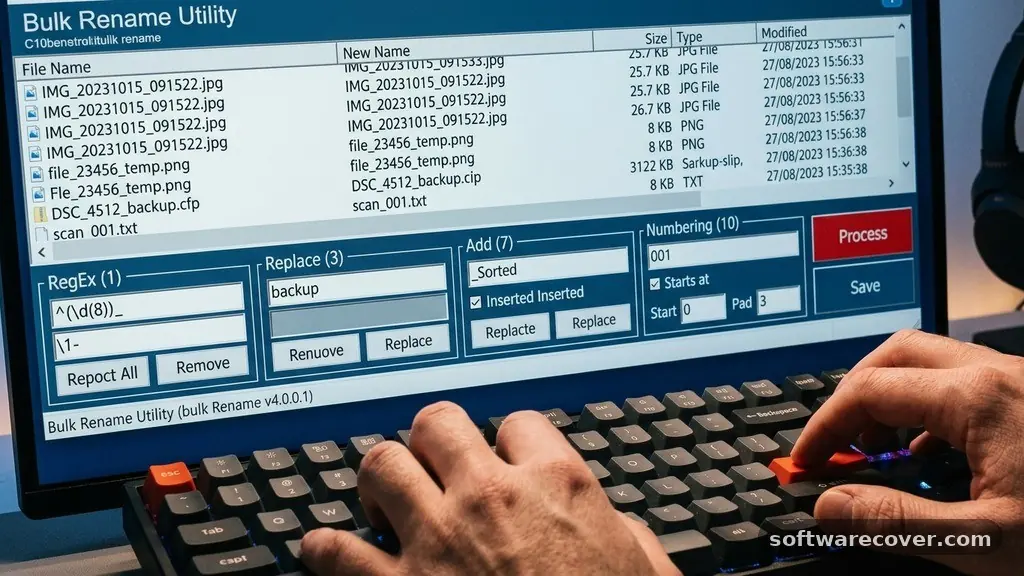
If you need granular control, Bulk Rename Utility is arguably the industry standard for Windows users. It features an interface that might look intimidating at first glance, but it provides unmatched depth for complex renaming tasks. Every possible parameter, from metadata extraction to character position manipulation, is available directly within the main window.
The software allows you to perform operations based on file extensions, creation dates, and even EXIF data for images. You can insert numbers, remove specific strings, or change the case of filenames with just a few clicks. Because it is highly configurable, it is the preferred choice for power users who need to automate repetitive workflows.
Once you have selected your files, you can preview the changes in real-time before applying them. This safety feature prevents accidental renaming of critical system files or documents. It is a lightweight application that does not require an active internet connection, making it secure for sensitive local data.
PowerRename: The Microsoft Integration
For users who want a seamless experience, Microsoft’s own PowerRename is an excellent addition to the PowerToys suite. It integrates directly into the Windows File Explorer context menu, meaning you never have to open a separate application to perform a task. Simply right-click on any selected group of files and choose the option to rename them.
The interface is clean, modern, and incredibly user-friendly. It focuses on search-and-replace functionality using simple text or advanced regular expressions (RegEx). Because it is built by Microsoft, it is fully optimized for the Windows environment and receives regular updates.
This tool is perfect for quick, everyday tasks like removing unwanted spaces or changing prefixes. While it lacks the extreme complexity of some dedicated utilities, its accessibility makes it the top choice for most casual users. You can download it as part of the Microsoft PowerToys collection to enhance your system productivity.
Advanced Renamer: Balancing Ease and Complexity
Advanced Renamer strikes a perfect middle ground between the overwhelming features of professional tools and the simplicity of basic apps. It uses a method-based system where you stack different rules to create a final file name. For example, you can add a “New Name” method followed by a “Numbering” method to perfectly format your list.
This software is particularly good at handling multimedia files. It can read tags from audio files or GPS coordinates from photos to automatically rename them based on their content. The preview column shows exactly what the result will look like, which is invaluable for identifying errors before they become permanent.
The program supports a wide range of file types and handles large batches without slowing down your computer. It is free for personal use and provides a polished, modern interface that is much easier to navigate than many legacy alternatives. If you find yourself needing to perform complex, multi-step renaming, this is likely your best bet.
Comparing Popular Renaming Tools
When selecting the right software, it helps to compare the primary strengths of each application. While many tools share similar core features, the user experience varies significantly between them. The table below outlines how these programs differ in terms of target audience and interface complexity.
| Software Name | Best For | Interface Style |
|---|---|---|
| Bulk Rename Utility | Advanced Users | Technical/Dense |
| PowerRename | Casual Users | Integrated/Minimalist |
| Advanced Renamer | Mid-Level/Versatile | Method-Based/Clean |
| Rename Master | Batch Processing | Tabbed/Functional |
Rename Master: A Reliable Classic
Rename Master is a portable, script-friendly application that has stood the test of time. It is particularly useful if you want to avoid installing software on your machine, as it runs perfectly from a USB drive or a standalone folder. The interface is organized into tabs, making it easy to isolate specific renaming rules.
One of its standout features is the ability to handle subfolders recursively. If you have a deep directory structure, you can tell the program to scan all nested folders and rename files based on their parent directory names. This is a massive time-saver for anyone managing large, multi-layered archives.
It also includes a robust “Undo” feature, which is a lifesaver if you realize you made a mistake during a batch operation. While the UI feels slightly dated compared to modern Windows apps, its reliability and performance remain top-tier. It is a fantastic tool for those who prioritize function over aesthetic design.
Key Features to Look For
When evaluating software, you should prioritize specific capabilities that make the process faster and safer. A good utility should always provide a live preview of the changes before you commit to them. Without a preview, you risk destroying the organization of your files with a single incorrect setting.
Regular expression support is another essential feature for more advanced tasks. If you need to rename files based on complex patterns—such as extracting dates from the middle of a string—RegEx is the only way to do it efficiently. Look for software that includes a library of common patterns to help you get started without having to learn syntax from scratch.
Finally, consider the software’s performance with large batches. Renaming ten files is easy, but renaming ten thousand files requires a tool that handles system memory well. The best applications will process these files in the background without freezing your desktop environment.
- Live preview of changes before applying.
- Support for metadata (EXIF, ID3, File Tags).
- Recursive folder processing for nested directories.
- Undo functionality for accidental changes.
- Regular expression support for pattern matching.
- Portable versions that don’t require installation.
Common Pitfalls in Batch Renaming
Even with the best software, it is easy to run into trouble if you are not careful. The most common mistake is failing to account for file extensions. If you accidentally strip the extension from a file, Windows will no longer know which application should open it, rendering the file unusable until it is manually corrected.
Another frequent issue involves duplicate file names. If your renaming rule results in two files having the exact same name, the software might overwrite one file with the other. Most high-quality tools include a check to prevent this, but it is always wise to double-check your output column.
Always perform a “dry run” on a test folder containing copies of your files. Never experiment with your original, irreplaceable data until you are completely confident in the rules you have defined. Taking five minutes to test your settings can save you hours of work restoring files from backups.
Frequently Asked Questions
Can I rename files based on their creation date?
Yes, most of the software mentioned above allows you to pull metadata directly from the file properties. You can add the creation date or time to the filename, which is incredibly helpful for organizing photos or log files.
Is it possible to undo a batch rename if I make a mistake?
Some, but not all, utilities include a dedicated “Undo” function. If the software you choose does not have one, always work on a copy of your data first to ensure you can revert to the original state if needed.
Do these tools work on both Windows and Mac?
Most of the tools listed are Windows-exclusive, as the Windows file system architecture makes this type of batch processing more common. Mac users typically have access to built-in tools like Finder’s “Rename” feature, which is surprisingly capable for basic tasks.
What are regular expressions?
Regular expressions are strings of text that define a search pattern. They are used in advanced renaming tools to find specific parts of a filename—such as a series of numbers or a specific date format—that would be impossible to target with a simple “find and replace” command.
Will these tools rename my file extensions?
They can, but you should be very careful. Renaming a file extension changes the file type, which can prevent it from opening. Only change extensions if you specifically intend to convert the file format or fix a known error.
Choosing Your Next Step
Selecting the best Free Software for Renaming Multiple Files depends entirely on your comfort level with technology and the complexity of your task. If you want something that is always available and easy to use, start with PowerRename. If you are dealing with thousands of files and need deep, granular control over every character, Bulk Rename Utility or Advanced Renamer will serve you far better.
Regardless of your choice, remember to always back up your data before starting a large batch operation. By taking the time to learn these tools, you can transform your digital workspace into an orderly, efficient system that works for you. Take a moment to download one of these options today and see how much time you can save.