
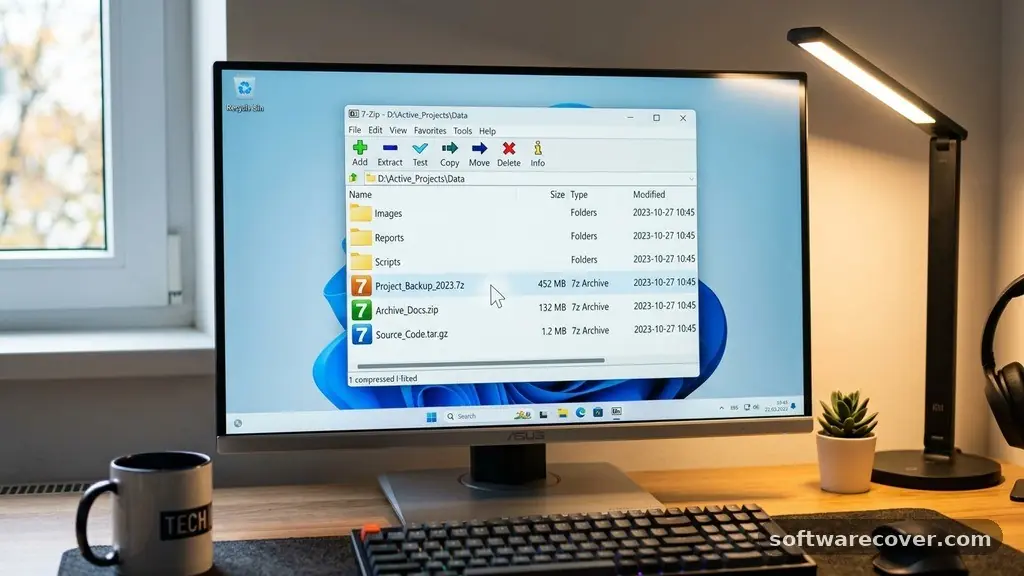
Finding the best Free Software for Opening ZIP and RAR Files is a task that almost every computer user faces eventually. Whether you are dealing with compressed email attachments, downloading software installers, or archiving personal documents, having a reliable tool at your fingertips is essential. While many users instinctively turn to paid programs, the reality is that the most effective utilities are often entirely free and open-source.
This article will help you identify which tools provide the most reliable performance for managing your archives without requiring a subscription or a paid license. You will find that high-quality, lightweight options exist that outperform many expensive alternatives.
The Top Recommendation
If you are looking for the absolute best Free Software for Opening ZIP and RAR Files, 7-Zip is the undisputed industry leader. It has been the go-to utility for millions of users since its initial release in 1999. The software is completely free, open-source, and does not include any intrusive advertisements or nag screens.
It excels at handling almost every archive format you might encounter, including the common ZIP and the proprietary RAR format. Its core strength lies in its proprietary LZMA and LZMA2 compression algorithms, which consistently produce smaller file sizes than standard ZIP compression.
Why 7-Zip Remains the Industry Standard
7-Zip is often the first program installed on a fresh Windows system for a very specific reason: it works perfectly every single time. It integrates directly into the Windows shell, meaning you can right-click any file to extract its contents immediately. This level of system integration saves significant time when you are managing large volumes of data.
Because it is distributed under the GNU LGPL license, it is free for both personal and commercial use. You never have to worry about a trial period expiring or being prompted to “upgrade” to a pro version.
The interface is intentionally minimalist and utilitarian. While some users might find it looks a bit dated, this design choice ensures the program remains incredibly lightweight. It consumes virtually no system resources while idle, which is a major advantage for older hardware or machines with limited memory.
You can find the official 7-Zip download page to grab the latest version directly from the source. By sticking to the official site, you ensure that you are getting a secure, malware-free version of the software.
PeaZip: A Modern Alternative for Archive Management
If you prefer a more modern aesthetic, PeaZip is an excellent alternative that serves as one of the best Free Software for Opening ZIP and RAR Files. It is built on top of the same powerful compression technologies as 7-Zip but wraps them in a much more polished, user-friendly interface. It offers a graphical user interface that feels native to modern operating systems.
Beyond just opening files, PeaZip includes features for file encryption and secure deletion. This makes it a great choice for users who handle sensitive data and need to ensure files are wiped completely after extraction.
PeaZip also supports a massive range of formats, handling over 180 different archive types. If you frequently work with obscure archive formats, you will rarely find a file that PeaZip cannot open.
It also allows you to convert between different formats, which is helpful if you need to transform a bulky format into a more efficient ZIP file. The software is updated frequently, ensuring compatibility with the latest Windows security standards and file system changes.
Comparing Popular Archive Utilities
When choosing between these tools, it helps to see how they stack up against one another in terms of features and accessibility. While most users just need a simple “extract” button, others might require advanced features like repair tools or multi-volume support. The following table highlights the key differences between the most prominent free options.
| Software | Open Source | User Interface | Primary Strength |
|---|---|---|---|
| 7-Zip | Yes | Minimalist | Performance & Compatibility |
| PeaZip | Yes | Modern & Intuitive | Feature Set & Security |
| WinRAR | No | Traditional | Robust Error Correction |
As shown above, the trade-off is often between a classic, lightweight approach and a feature-rich, modern design. While WinRAR is technically a “trial” software that never truly expires, it is not free in the same sense as 7-Zip or PeaZip. Opting for open-source software avoids the ethical dilemma of using trialware indefinitely.
Understanding the RAR Format
The RAR format is slightly different from the standard ZIP format because it is proprietary. This means that while many programs can “read” or extract RAR files, not all of them can “write” or create them. 7-Zip, for instance, is an excellent tool for opening RAR files, but it does not create them by default.
This is a common point of confusion for new users. If you need to create your own compressed archives, ZIP is the universally compatible choice that works on every operating system without extra software.
RAR files are often used because they offer better error recovery features. If a large archive is partially corrupted during a download, a RAR file often contains “recovery records” that can help fix the issue.
When you are looking for the best Free Software for Opening ZIP and RAR Files, consider whether you simply need to access content or if you need to perform advanced archiving tasks. For 99% of users, simply extracting files is all that matters, making 7-Zip or PeaZip the perfect candidates.
Best Practices for Extracting Files Safely
Security should always be your top priority when dealing with compressed archives. Malicious actors often hide executable files inside ZIP or RAR files to bypass standard email security filters. Even when using the best software, you should always scan the extracted contents with your antivirus program before running any installers.
Never extract an archive from an unknown source if you are not expecting it. If a file looks suspicious, it is better to delete the archive immediately rather than opening it.
Another tip is to extract files to a specific folder rather than dragging them directly onto your desktop. This keeps your workspace clean and prevents random files from cluttering your system. Most of the software listed here allows you to right-click an archive and select “Extract to [Folder Name].”
This creates a neat directory where all the contents are contained, making it much easier to organize your documents. Using this method also makes it easier to delete the entire folder later if you decide the files are no longer needed.
Mobile Access to Archives
In our increasingly mobile world, you might find yourself needing to open a ZIP file on your smartphone. Fortunately, the options for mobile devices have improved significantly over the last few years. If you are using an Android device, the ZArchiver app is widely considered the gold standard.
It provides a file manager-like interface that makes it very simple to navigate through complex folder structures within an archive. It handles password-protected files with ease, which is a common requirement for secure documents.
For iOS users, the built-in “Files” app has become much more capable. You can now tap on a ZIP file to extract it directly into the same directory without needing any third-party software.
However, if you are dealing with RAR files on an iPhone, you might still need a dedicated app like iZip. These apps provide a bridge between the compressed archive and your mobile storage, ensuring you can view your files on the go.
Troubleshooting Common Extraction Issues
Sometimes, you might encounter an error message stating that an archive is “corrupt” or “unsupported.” This can be frustrating, but it is rarely the fault of the software you are using. Often, the file was not downloaded completely, or the server interrupted the transfer halfway through.
Before assuming the software is the problem, try downloading the file a second time. This simple step fixes the vast majority of extraction errors.
If a file remains problematic, it may be password-protected or encrypted. Many users forget that they have applied a password to their own files, leading to errors when they try to open them later. Ensure that you have the correct password and that you are typing it carefully, as these are almost always case-sensitive.
If you receive an error about “insufficient permissions,” try running your archive software as an administrator. This gives the program the necessary access to write files to protected system folders.
Frequently Asked Questions
Is WinZip still the best option for opening files?
WinZip was the industry leader in the early 2000s, but it has largely been superseded by free, open-source alternatives. While it is a functional program, it is not truly free, and most modern users prefer the lightweight performance of tools like 7-Zip.
Can I open RAR files without a paid program?
Yes, you can absolutely open RAR files for free. Both 7-Zip and PeaZip provide full support for opening and extracting RAR archives without costing a single cent.
What is the most secure way to handle downloaded archives?
The most secure approach is to save the file, scan it with your antivirus software, and then extract the contents into a dedicated folder. Never open an executable file (.exe) directly from inside an archive if you do not trust the source.
Why do some ZIP files not open?
If a ZIP file refuses to open, it is likely either incomplete or encrypted. Try re-downloading the file or checking if you need a password to access the contents.
Is it safe to download free archive software?
As long as you download the software from the official developer’s website, it is entirely safe. Avoid third-party download sites, as they often bundle unwanted “bloatware” or advertisements with the legitimate installation files.
Final Thoughts
Choosing the right tool to manage your files doesn’t need to be a complicated or expensive process. By relying on trusted, open-source solutions like 7-Zip or PeaZip, you gain access to powerful features without the burden of license fees or intrusive marketing. These programs represent the best Free Software for Opening ZIP and RAR Files because they prioritize speed, compatibility, and user control.
Whether you are a casual user simply trying to open an email attachment or a power user managing hundreds of archives, the utilities mentioned here will serve you reliably for years to come. Take a moment to install one today, and you will immediately notice how much easier your digital file management becomes.